User interface
This page is the reference for every element of the CS Bridge interface, for maintainers and for users who configure the extension themselves; for a guided first session, see Getting started.
Status names in code formatting are the values stored in the session record, defined in Status model. Log output is described under Message locations.
Views
The CS Bridge activity-bar container holds three webview views. The ID is for keybindings and when clauses.
| View | ID | Shown | Title-bar actions |
|---|---|---|---|
| Sessions | csbridge.sessionsView | Always; in a remote window, only that window's session | + (Open Menu), local windows only |
| Run History | csbridge.statsView | Local windows only | Refresh Run History, Clear Run History |
| SSH Hosts | csbridge.hostsView | Local windows only | Refresh SSH Hosts, + (Add SSH Host) |
The Sessions view description shows the signed-in Microsoft account, or Not Signed In.
Menu
CS Bridge: Open Menu is a quick pick with nested pages. Enter opens an item; Escape or the back button
returns one page. Items marked (experimental) appear only with csbridge.experimentalFeatures on.
| Item | Does |
|---|---|
| Create New SSH Session | Lists SSH hosts, then opens a draft form for the chosen one |
| Add SSH Host | Adds a host from an ssh command |
| Default Transport (experimental) | Writes csbridge.transport at global scope |
Sign In to CyberShuttle, Sign Out of CyberShuttle (experimental) | CILogon device sign-in through Airavata |
| Sign In to Microsoft DevTunnel, Sign Out of Microsoft DevTunnel | VS Code's microsoft authentication provider |
Default Transport offers Microsoft DevTunnel and Cybershuttle Link (Transports). Signing out of Microsoft DevTunnel signs the account out of VS Code as a whole.
Add SSH Host takes two pages: an ssh command, for example ssh hello@microsoft.com -A, then the alias,
pre-filled with the host name. It confirms with Added SSH host <alias>. and writes the entry at the top of
~/.ssh/config, after any Include lines, replacing an entry with the same alias.
The parser (src/modules/sshCommandParser.ts) uses Remote-SSH 0.123.0's option grammar:
| Input | Becomes |
|---|---|
user@host, user@host:port, ssh://user@host:port | HostName, User, Port |
-p, -i, -J, -A | Port, IdentityFile, ProxyJump, ForwardAgent yes |
-o Key=Value | Key Value |
The alias, host name and user may not start with - or contain a backslash, a single or double quote, a backtick,
!, %, a space, CR or LF.
SSH Hosts view
Hosts come from ~/.ssh/config merged with the system file (/etc/ssh/ssh_config, or
%ALLUSERSPROFILE%\ssh\ssh_config on Windows). The user's file wins on a duplicate alias; wildcard hosts (*, ?)
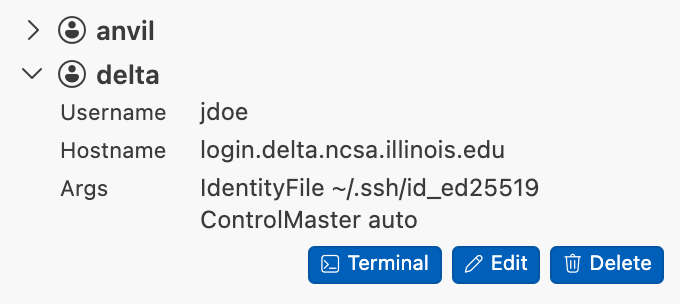
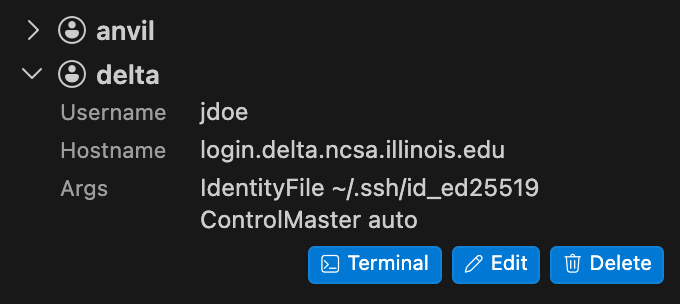
and Match blocks are skipped. An icon marks the source. Each row expands to show Username, Hostname and Args (every
other directive).
CS Bridge reaches a host by running the system ssh <alias>, so every directive of the entry applies. To change how
CS Bridge logs in to a cluster, edit the host's entry in ~/.ssh/config and click Refresh SSH Hosts.
| Button | Available on | Does |
|---|---|---|
| Terminal | Every host | Integrated terminal running ssh <alias> over the host's shared ControlMaster connection |
| Edit | Hosts from ~/.ssh/config | Menu page Edit SSH Host: the alias, then [user@]hostname. Rewrites Host, User and HostName in place and keeps other directives; confirms Updated SSH host <alias>. |
| Delete | Hosts from ~/.ssh/config | Asks Delete SSH host '<alias>'? (This deletes it from ~/.ssh/config.), then removes the entry |
Session form
Create New SSH Session opens a draft card that shows Fetching runtime details… while CS Bridge reads the host.
SSH prompts appear in the SSH Authentication — <alias> panel. A failure shows the error and Retry. The
card's refresh icon (Refresh Slurm details) re-reads the host; its close icon discards the draft. A window reads
each host once and reuses the result for later drafts until that refresh.
Every choice except the walltime comes from the cluster. When a choice is missing, run the command in the Source column by hand.
| Field | Choices | Source |
|---|---|---|
| CPU / GPU | Tabs, shown only when both kinds of partition exist; the GPU tab lists partitions with a gpu GRES | sinfo -h -o "%P|%c|%m|%G" |
| Slurm account | Each association of $USER (the first is the default), and (no Slurm account) | sacctmgr -n show associations where user=$USER format=Account -P, mapped through /usr/local/etc/project.map when readable |
| Partition | Partitions of the tab, labelled <name> (<n> CPUs) or <name> (<n> CPUs, <m> GPUs) | sinfo |
| CPUs | 2 up to the partition's CPU count | sinfo %c |
| Memory | 4, 8, 16, 32, 64, 128, 256, 512, 1024 GB, up to the partition's memory (191000+ reads as 191000 MB); 4 to 128 GB when sinfo reports no number or 0 | sinfo %m |
| GPUs, GPU Type | GPU tab only; 1 up to the partition's count of the chosen type | sinfo %G |
| Walltime | 30 min (default), 1, 2, 4, 8, 12 or 24 hours | Fixed |
The account mapping exists because Slurm's database lowercases account names and TACC's submit filter expects the
spelling in project.map. The floors of 2 CPUs and 4 GB exist because a smaller job starves the VS Code server; a
2 GB job was observed to be killed on Delta (src/ui/logic/cluster.ts).
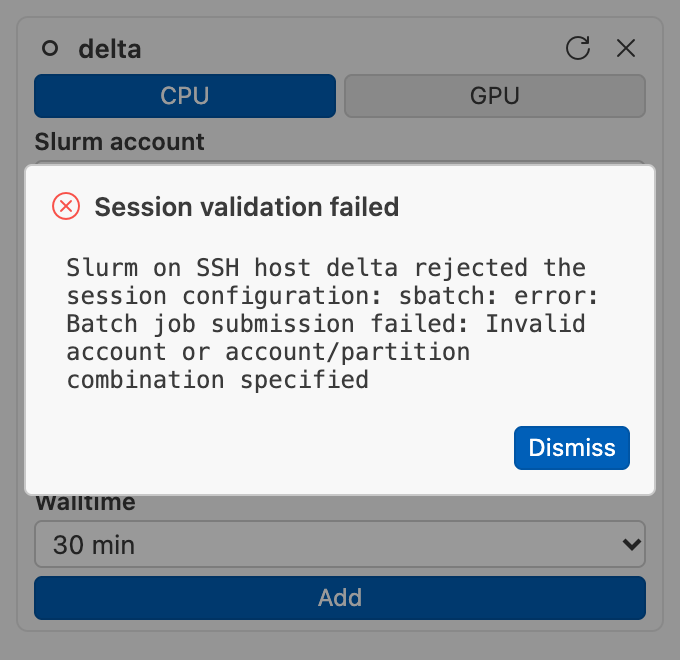
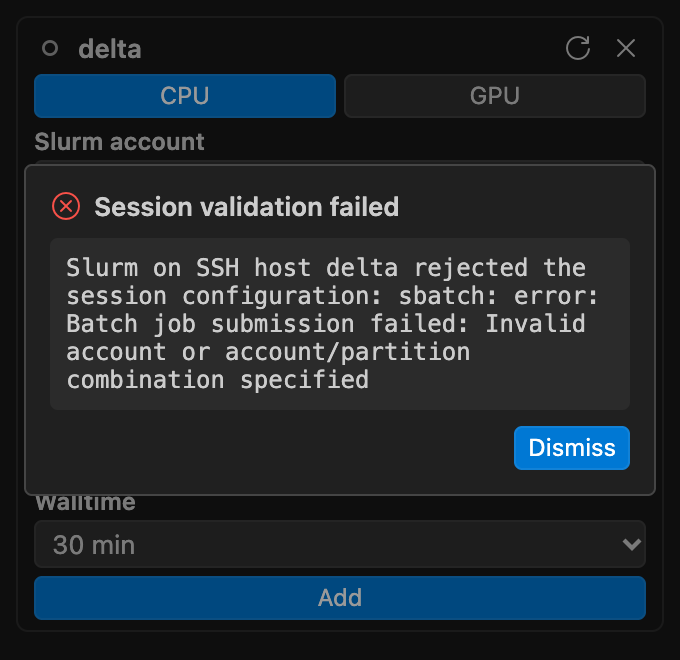
Add pipes the job script to sbatch --test-only, which runs the site's submit filter and queues nothing. The
session is saved as not_started only if Slurm accepts it. Otherwise an overlay titled Session validation failed
shows Slurm's message and Dismiss, and the draft stays open. Sessions cannot be edited.
Session cards
A card shows, in order:
- a status icon, the SSH host alias, Slurm account and partition chips, and a delete icon when the session is deletable;
- the memory, CPUs and GPUs requested;
- a walltime chip, the status text and the actions.
While the session is ready_to_connect, connecting or connected, each resource reading gains a sparkline of the
last 20 usage samples, one every five seconds, read from Linkspan on the node.
| Icon colour | Statuses |
|---|---|
| Green | ready_to_connect, connecting, connected |
| Orange | failed, unreachable |
| Grey | All others |
| Status | Status text | Actions |
|---|---|---|
not_started | Not started | Start, delete |
submitting | Submitting… | Stop |
queued | Queued (<elapsed since submission>) | Stop |
preparing | Starting Linkspan… | Stop |
ready_to_connect | <time> left | Stop, Connect |
connecting | Connecting… | Stop, Connecting… (disabled) |
connected | <time> left | Stop, and one of Current (this window, disabled), Switch (another window has it open), Opening… or Connect |
unreachable | Unreachable: <message>, or SSH host unreachable — retrying… | Stop, Reconnect |
stopping | Stopping… | None |
stopped | Stopped, or Stop failed: <message> when the record holds an error message | Start, delete |
failed | Failed: <message> | Start, delete |
| Action | Does |
|---|---|
| Start | Releases the previous run, prepares the transport, shows the Slurm Job Script Preview |
| Submit Job | Sets submitting, runs sinfo, installs or updates Linkspan, runs sbatch, sets queued |
| Connect, Reconnect | Ensures Linkspan's SSH server, binds the local forward, writes the per-session SSH host, opens or focuses the window |
| Switch | Focuses the window already open on the session |
| Stop | Asks Stop session? (This stops the running job.), sets stopping, runs scancel <jobId> |
| Delete | Asks Delete session?, then removes the record, its run history file, the per-session SSH host, the key and both transports' tunnels |
Preparing a Dev Tunnel signs in to Microsoft if needed and creates the run's tunnel. The preview offers Close, which releases the prepared run, and Submit Job. Stop keeps the record for the next Start.
Opening… holds until the new window registers itself, for at most 60 seconds. A Connect after the walltime
sets stopped and shows This session was stopped at its walltime limit. Start it again for a new run.
Remote window
A window whose authority is ssh-remote+<per-session alias> is a remote window for that session. In it, the
context key csbridge.remote is true, the Sessions view shows only that session with Stop as its only action, and
Run History and SSH Hosts are hidden.
| Status bar item | ID | Does |
|---|---|---|
$(clock) <t> left | csbridge.walltime | Walltime countdown; a click runs csbridge.sessionsView.focus |
$(debug-stop) Stop | csbridge.stopSession | Runs csbridge.stopRemoteSession, which asks Stop session? (This stops the running job and returns this window to local.) |
The countdown takes a warning background under ten minutes and reads no limit when the walltime is zero.
The window queues a summary and reloads as a local window (workbench.action.remote.close) when the walltime passes,
the session reaches stopped or failed, or the user confirms Stop. The reloaded window finishes a pending stop
with scancel and opens the Session summary panel.
The VS Code server runs from node-local /tmp/cs-vscode/<sessionId>. CS Bridge maps the per-session alias to that
path in the global setting remote.SSH.serverInstallPath. The shared home directory is avoided because a file-system
stall there makes the server miss its heartbeat, and all of one user's sessions would share one server tree
(src/modules/sshSupport.ts). Remote extensions therefore reinstall in each job.
Run History and summaries
Run History groups finished runs by session, headed by SSH host, Slurm account, partition and run count. Each row
shows the end time, the final status and two efficiency chips from sacct. Both read usage from the job's .batch
step, where the session's work runs; the .extern step and CS Bridge's own srun polls report near-zero use.
| Metric | Formula | Chip colour |
|---|---|---|
| CPU efficiency | TotalCPU of the .batch step ÷ CPUTimeRAW of the job | Green at 75% or more, yellow at 40% or more, red below, grey when unknown |
| Memory efficiency | MaxRSS of the .batch step ÷ ReqMem | As above |
Up to ten runs are kept per session. Clicking a run opens its summary from the run's recorded snapshot, while the
session still exists. Clear Run History asks Clear all recorded run history? and empties the run list of every
session.
The Session summary panel (Session <name> summary) shows the final state (Stopped, Failed, Walltime reached or
Ended), then Resources (CPUs, memory, GPUs, partition, Slurm account, job ID), Walltime (used and limit), Live resource
history, and Slurm accounting (efficiencies, cores allocated, elapsed time, memory used against requested).
Settings
| Key | Type | Default | Description |
|---|---|---|---|
csbridge.experimentalFeatures | boolean | false | Enables experimental features |
csbridge.transport | devtunnel | link | devtunnel | How a session's Linkspan is reached; read at each Start, so a change applies to a session's next run and never to a running one |
The only experimental feature is cybershuttle: the Default Transport menu item, Cybershuttle sign-in and the
link transport (Experimental features). While it is off, Start uses
devtunnel whatever csbridge.transport says.
{
  "csbridge.experimentalFeatures": true,
  "csbridge.transport": "link"
}
Commands
All commands are in the CS Bridge category.
| Command | Title | Where | Command Palette |
|---|---|---|---|
csbridge.menu | Open Menu | Sessions title bar +, local windows | Local windows |
csbridge.addHost | Add SSH Host | SSH Hosts title bar +; opens the menu at Add SSH Host | No |
csbridge.refreshHosts | Refresh SSH Hosts | SSH Hosts title bar | No |
csbridge.refreshStats | Refresh Run History | Run History title bar | No |
csbridge.clearRunHistory | Clear Run History | Run History title bar | No |
csbridge.editHost | None | SSH Hosts row Edit; opens the menu at Edit SSH Host | No |
csbridge.stopRemoteSession | None | Remote window status bar Stop and the remote Sessions card | No |
csbridge.editHost and csbridge.stopRemoteSession are registered at runtime, not in package.json; the latter in
remote windows only.
Keybindings and context keys
One keybinding makes Escape step back through the menu:
| Key | Command | When |
|---|---|---|
escape | workbench.action.quickInputBack | inQuickOpen && csbridge.menuNested |
The extension sets two context keys:
| Key | True when |
|---|---|
csbridge.remote | The window is a CS Bridge remote window; hides Run History, SSH Hosts and the Sessions + |
csbridge.menuNested | The menu shows a page below its first |
Files written
The extension global storage, the cybershuttle.csbridge folder in VS Code's User/globalStorage on the laptop, holds
all session state; deleting it resets the extension. On first activation 0.2.3 moves the files of earlier releases there from the laptop's
~/.cybershuttle/. Do not edit its ssh_config by hand: CS Bridge removes a session's block by matching the exact
text it wrote.
| Location | Contents |
|---|---|
Extension global storage schema.json | Schema version of the files below; older ones are migrated at activation, newer ones refused. Downgrading below 0.2.3 is unsupported |
Extension global storage sessions/<id>.json | One session record per session |
Extension global storage runs/<id>.json | Up to ten finished runs, the last 20 usage samples, and the current run's sacct statistics |
Extension global storage windows/<window id>.json | Heartbeat of a window connected to a session, rewritten every 20 seconds and deleted when the window closes |
Extension global storage ssh_config | Per-session SSH hosts; ~/.ssh/config includes it by quoted absolute path before its first Host or Match block |
Extension global storage ssh_keys/ | id_cshost-<id>, a per-session ed25519 private key, no passphrase; the public half is derived on demand |
csbridge-ssh/ in $XDG_RUNTIME_DIR or the temp folder | ControlMaster sockets (not on Windows); a new csbridge-* temp folder instead when that one is not private to the user |
<file>.lock, <file>.tmp beside ssh_config and ~/.ssh/config; migrate.lock in extension global storage | Cross-window lock holding a PID, and the atomic-write temporary |
~/.ssh/config | The Include line, and hosts added through Add SSH Host or changed through Edit |
VS Code user setting remote.SSH.serverInstallPath | Per-session alias → /tmp/cs-vscode/<id>; removed with the per-session SSH host on Stop, when a run ends as stopped, and on Delete |
VS Code user setting csbridge.transport | Written by Default Transport |
| OS keychain, through VS Code | The Microsoft account session |
VS Code SecretStorage csbridge.plane.credential | The Cybershuttle credential (experimental) |
VS Code global state csbridge.pendingSummaries | Up to eight sessions whose summary the next local window opens |
Extension global storage opened.marker | Records that the Completed installing CS Bridge. notification was shown |
Cluster ~/.cybershuttle/bin/linkspan | Linkspan, mode 0700 |
Cluster ~/.cybershuttle/logs/linkspan-session-<jobId>.{out,err} | Linkspan's output for each job; never deleted |
/tmp/cs-vscode/<sessionId> on the compute node | The VS Code server |
Removing CS Bridge lists what to delete to remove every trace.