Sessions and runs
This page covers what you can do with a session after Getting started.
A session is a saved set of resources on one cluster. Each Start submits a new Slurm job, a run of that session. Sessions cannot be edited; to change resources, create a new session and delete the old one.
Session states
Each session card shows one state and the actions it allows. Your allocation is charged while the job runs: from Starting Linkspan… until Stopped or Failed.
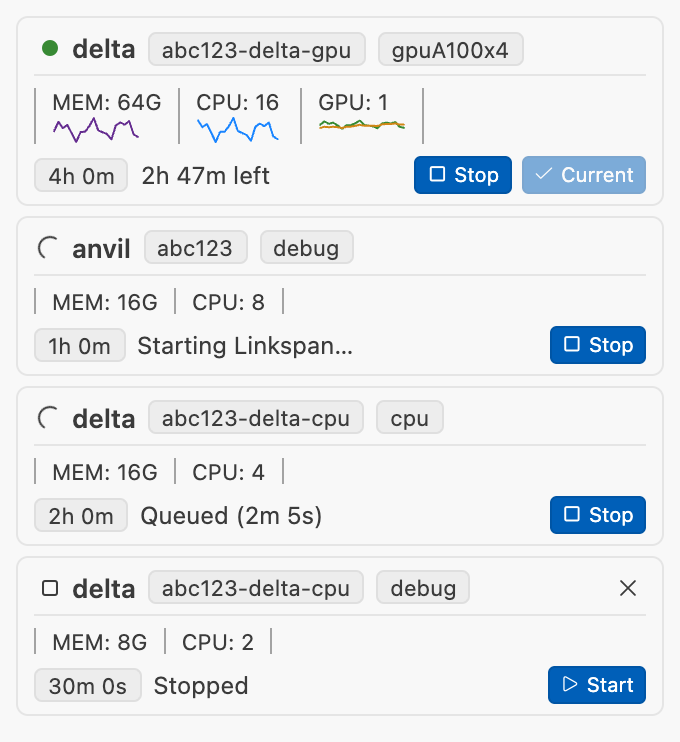
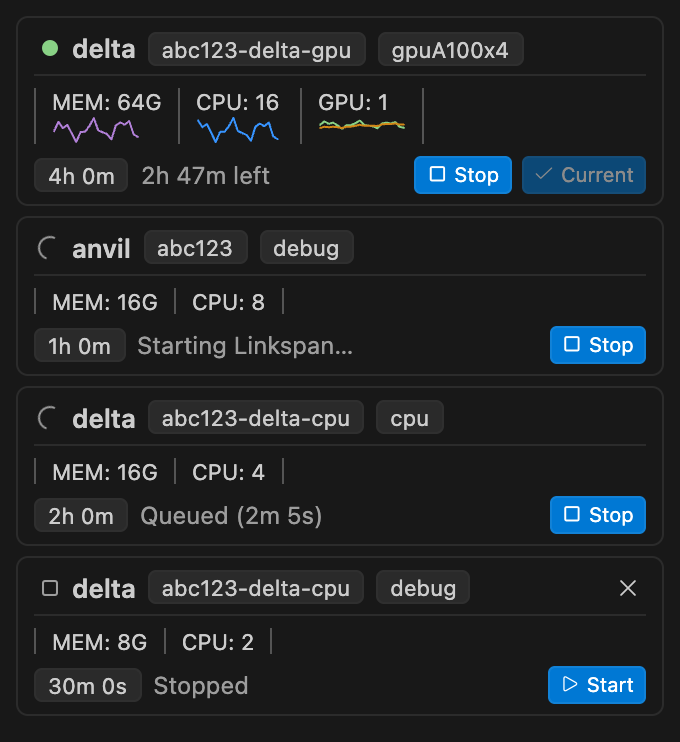
| Card shows | Meaning | You can |
|---|---|---|
| Not started | Validated, never submitted | Start, delete |
| Submitting… | Installing Linkspan, submitting the job | Stop |
| Queued (elapsed) | Waiting in the Slurm queue | Stop |
| Starting Linkspan… | Job running; Linkspan starting the SSH server | Stop |
<time> left | Ready | Connect, Stop |
| Connecting… | Remote window opening | Stop |
<time> left, with Current or Switch | A remote window is connected; Current marks the one you are in | Switch, Stop |
| Unreachable | A status check or the connection failed; CS Bridge does not stop the job | Reconnect, Stop |
| Stopping… | Stopping the job | Wait |
| Stopped, Failed | Job ended; any error is shown | Start a new run, delete |
While a session is ready or connected, its card also plots the job's recent memory, CPU and GPU use.
Closing the remote window, or quitting VS Code, leaves the job running; Connect opens a new window on the same job. An Unreachable from a failed status check clears once the login node answers; otherwise see Troubleshooting.
Remote window and walltime
The window on the compute node is a standard Remote-SSH window: folders, terminals, the debugger and the Jupyter notebook editor work as usual. Its status bar shows the time left, highlighted under ten minutes, and a Stop button.
Remote extensions are installed again in each job. List the extensions you always want in the VS Code setting
remote.SSH.defaultExtensions to install them automatically.
At the walltime, Slurm ends the job; it cannot be extended. The remote window returns to local and a Session summary opens. Files saved on the cluster remain; unsaved editors, terminals and debug sessions are lost.
Run history
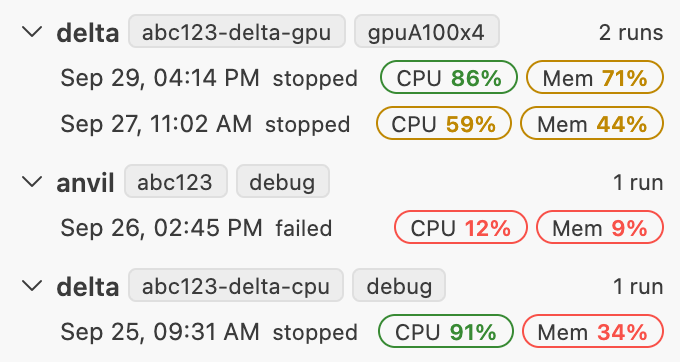
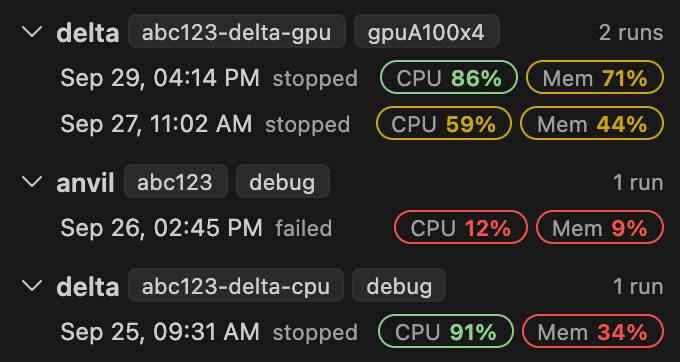
Run History groups runs by session and keeps the last ten of each. Each run shows its final state and two efficiency figures from Slurm's accounting:
| Figure | Meaning |
|---|---|
| CPU efficiency | CPU time used ÷ CPU time allocated |
| Memory efficiency | Peak memory ÷ memory requested |
A figure is green at 75% or more, yellow at 40% or more and red below; — means Slurm reported none. Low figures mean
you can request less next time. A memory efficiency near 100% means the job was close to its limit, where Slurm kills
it. Clicking a run opens its summary.
Removing CS Bridge
- Stop every running session, then delete each session with the delete icon on its card. Deleting removes the session's key, its SSH entry and its Dev Tunnel in your Microsoft account; uninstalling alone does not.
- Uninstall the extension. VS Code deletes its storage.
- Delete
~/.cybershuttle/on the cluster, theIncludeline in~/.ssh/configthat namescybershuttle.csbridge/ssh_configby absolute path, and anyremote.SSH.serverInstallPathentries CS Bridge left in your VS Code user settings.
Remove the Include line only together with the extension. Files written lists
everything CS Bridge creates.