Getting started
This tutorial takes you from installing CS Bridge to a VS Code window on a Slurm compute node, and back to a stopped job; a first run costs a few minutes of 2 CPUs. Before you start, meet the requirements, including a Remote-SSH extension.
1. Install
Install CS Bridge from the
Visual Studio Marketplace, or search
for CS Bridge in the Extensions view.
Result: a CS Bridge icon appears in the activity bar. It opens three views: Sessions, Run History and SSH Hosts.
2. Add a cluster
CS Bridge reaches a cluster through a Host entry in ~/.ssh/config. If the cluster is already listed under
SSH Hosts, skip this step.
Otherwise, click + in the Sessions view (CS Bridge: Open Menu) → Add SSH Host, paste the command you use to
log in, and press Enter:
ssh jdoe@login.delta.ncsa.illinois.edu
Accept the proposed alias or type a shorter one such as delta.
Result: a notification reads Added SSH host <alias>., and the host appears under SSH Hosts. ssh <alias>
also works in a terminal.
3. Create a session
A session is a saved set of resources on one cluster. Each time you start it, CS Bridge submits a new Slurm job.
Click Open Menu → Create New SSH Session → the cluster. A card shows Fetching runtime details… while
CS Bridge reads your Slurm accounts and the cluster's partitions.
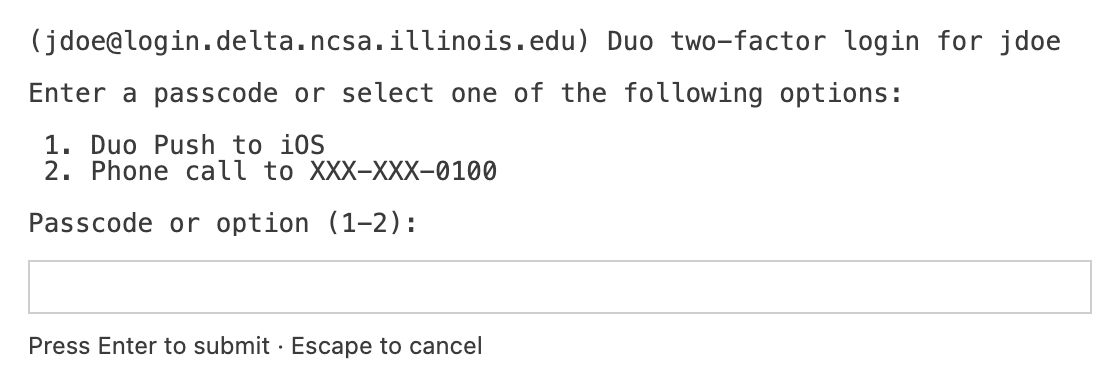
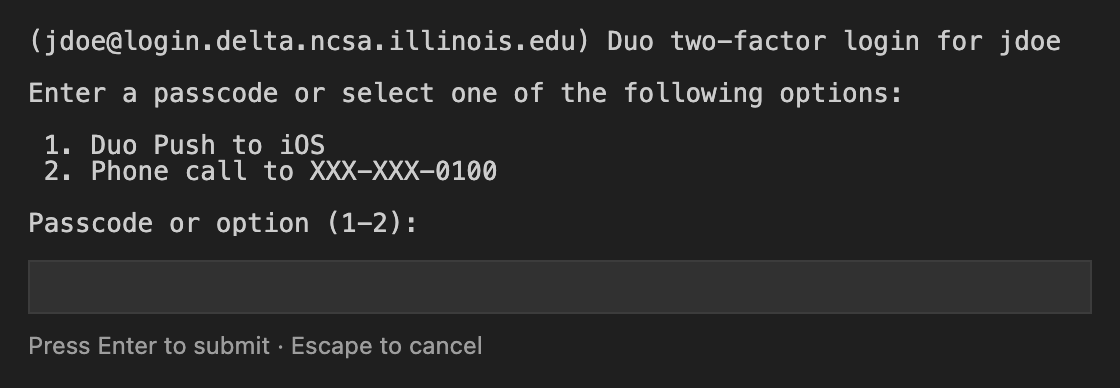
Password and MFA prompts appear in an SSH Authentication panel inside VS Code: type the answer and press Enter. Later steps reuse the connection.
The card then shows a form. For a first session, keep the defaults and choose only the account and partition:
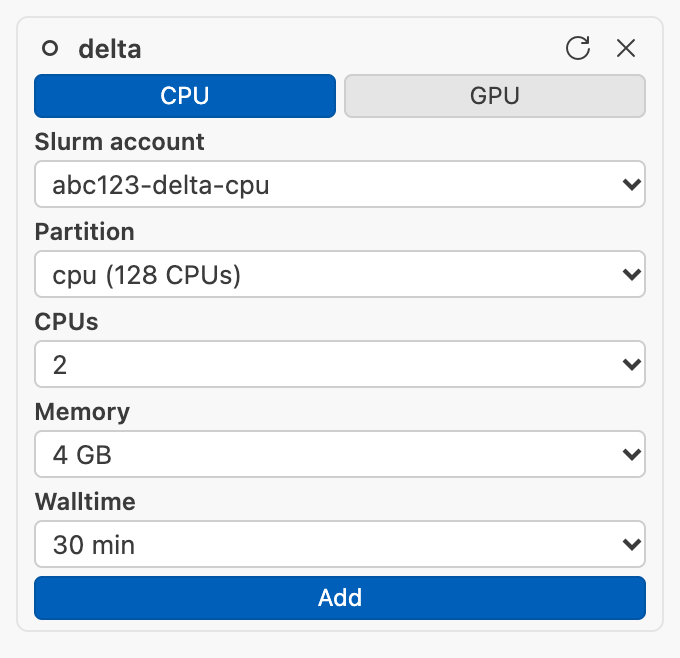
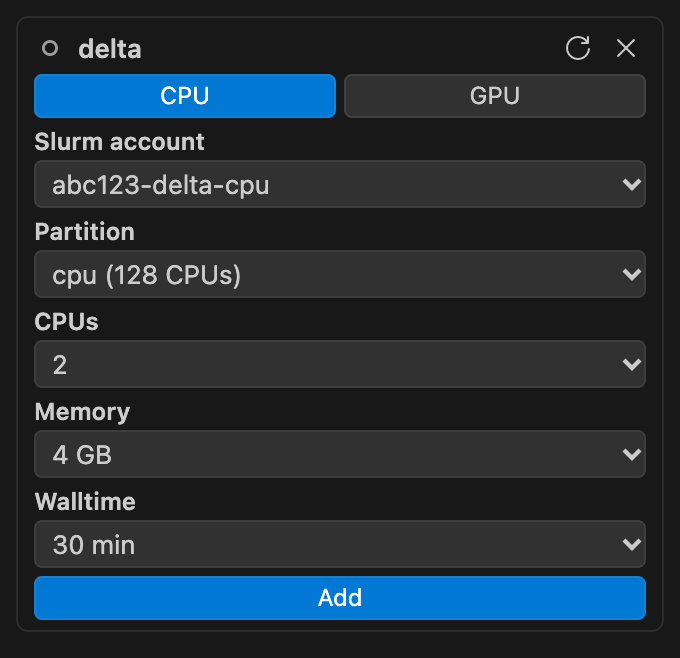
| Field | Choices |
|---|---|
| CPU / GPU | Tabs for partitions without and with GPUs |
| Slurm account | The allocation the job is charged to, or (no Slurm account) where the cluster needs none |
| Partition | The cluster's partitions |
| CPUs | 2 (default) up to the partition's per-node count |
| Memory | 4 (default), 8, 16, 32 … GB, up to the partition's memory |
| GPUs, GPU Type | GPU tab only |
| Walltime | 30 minutes (default), 1, 2, 4, 8, 12 or 24 hours; cannot be extended |
Click Add. While the button shows Validating…, CS Bridge asks Slurm whether it would accept the job, without
queueing anything.
Result: a session card shows Not started; nothing is charged yet. If Slurm refuses the job, "Session validation failed" shows Slurm's message; change the account, partition or resources and click Add again.
4. Start and connect
-
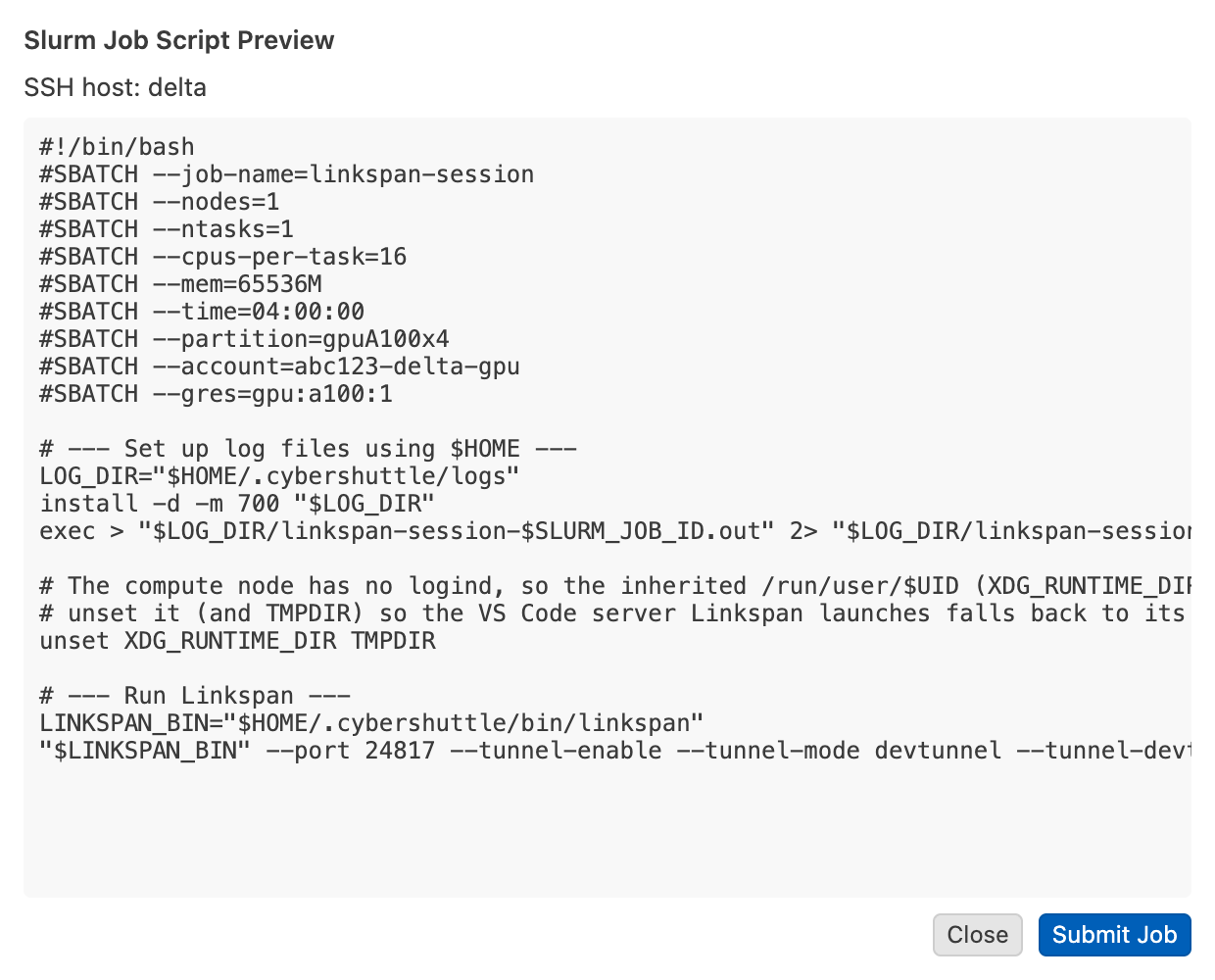
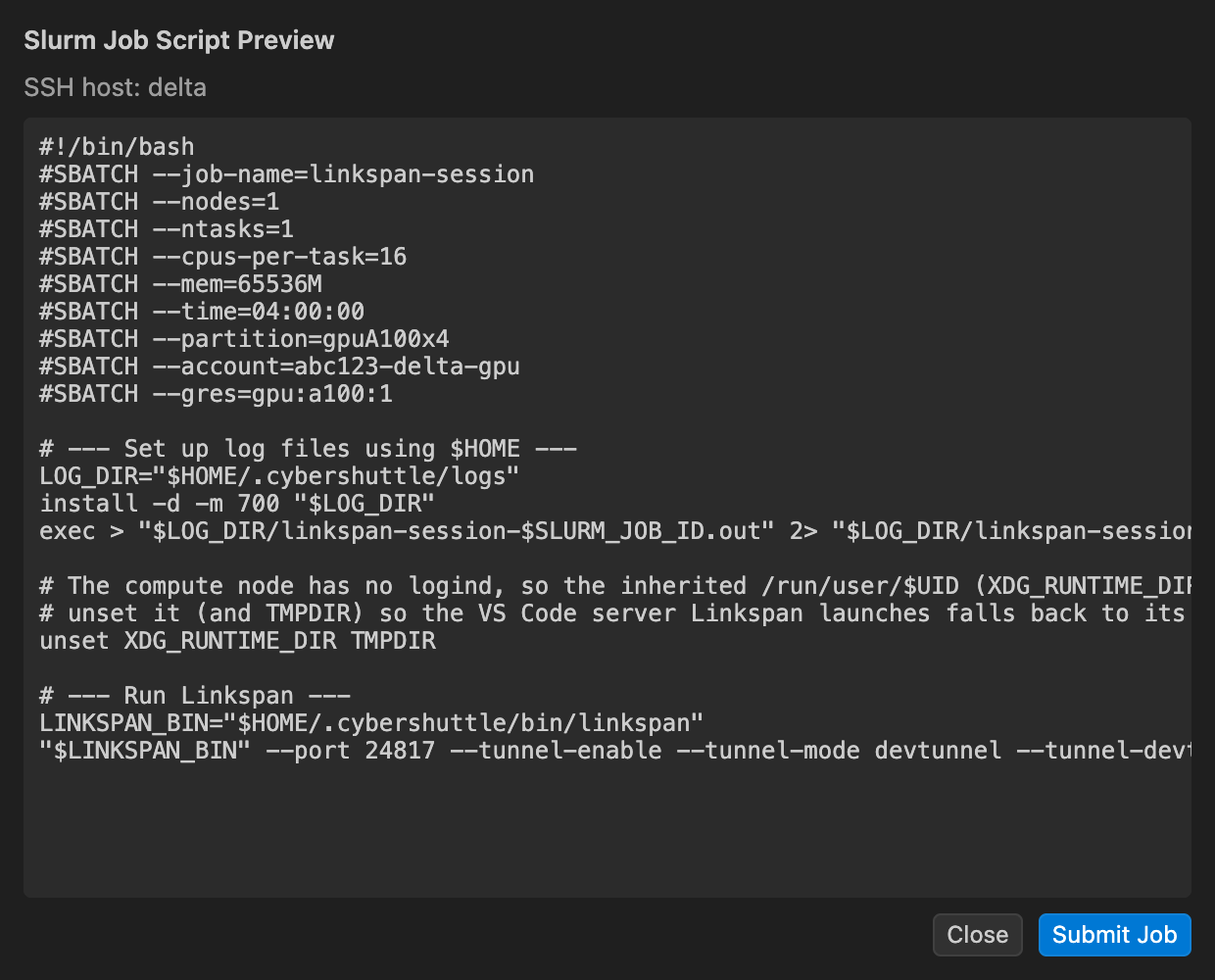
Click Start. Sign in to Microsoft if VS Code asks. CS Bridge shows the Slurm Job Script Preview, the exact script it will submit under your user.
-
Click Submit Job. The card moves through Submitting…, Queued with the time waited, and Starting Linkspan…. From Starting Linkspan… on, the job is running and your allocation is being charged.
-
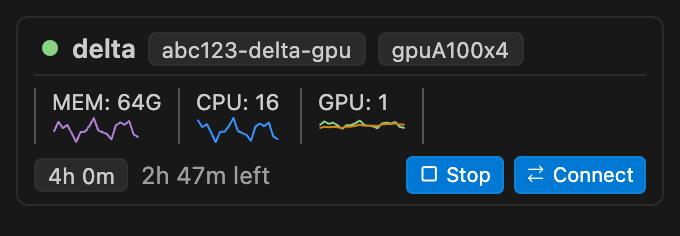
When the card shows the time left, the session is ready. Click Connect.
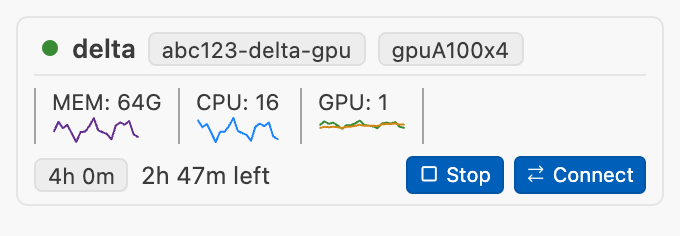
Result: a new VS Code window opens labelled [SSH: <alias>-<6 digits>]. To confirm, run hostname in its
terminal: it prints a compute node's name, not the login node's.
5. Stop
Click Stop on the card or in the remote window's status bar, and confirm Stop session?.
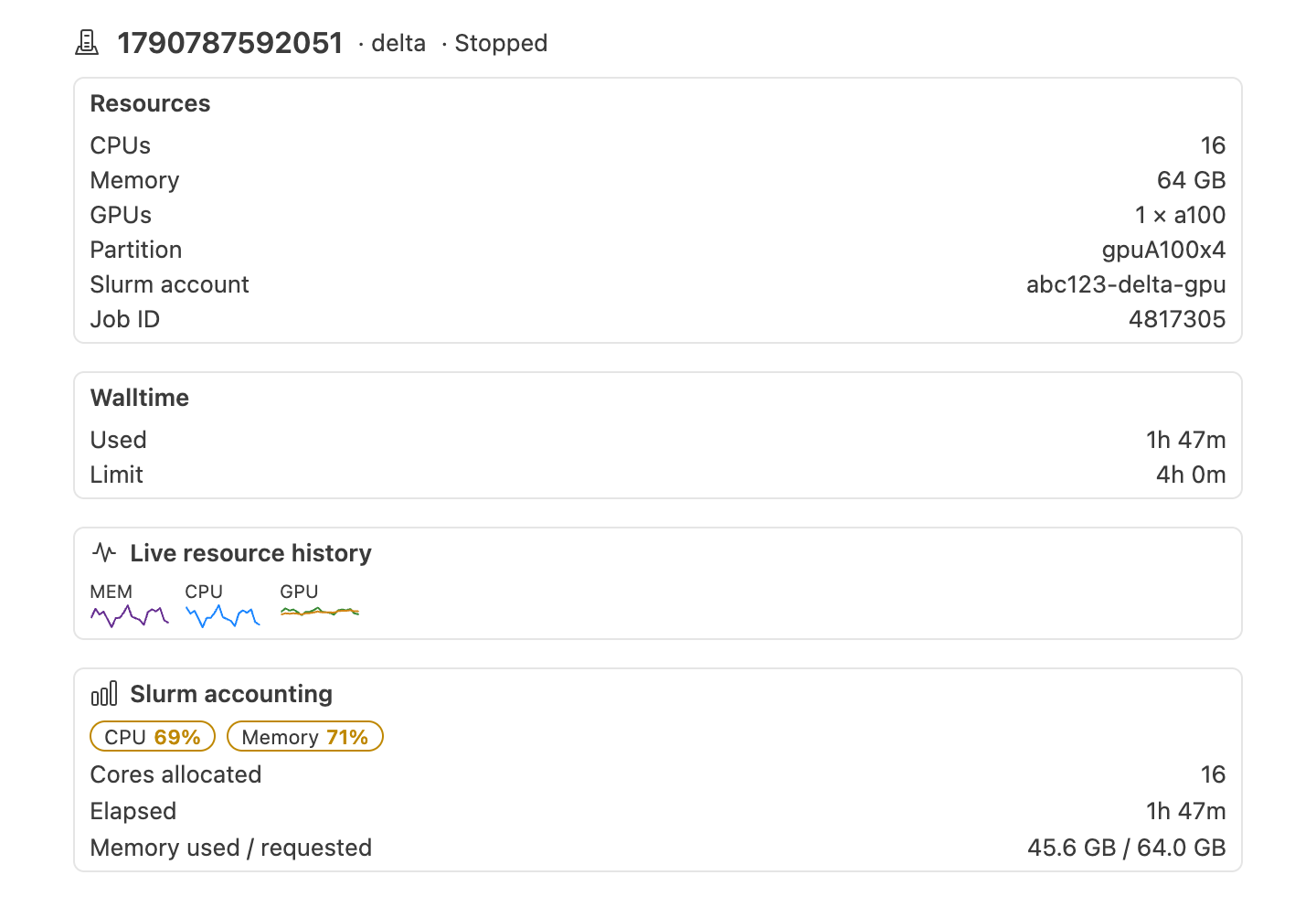
Result: the job and its charge end. The remote window returns to a local window and opens a Session summary of what the job used. The card shows Stopped; Start submits a new job with the same resources.
If a step does not give the result described, see Troubleshooting. Next, Sessions and runs covers session states, the walltime and run history.