User interface
This page lists every surface the CS Jupyter client adds to JupyterLab, with its exact wording and behaviour, for developers, operators and support staff. For a walk-through, follow Getting started.
Each section names its source file under src/ in the cs-jupyter repository.
Conventions:
| Convention | Meaning |
|---|---|
<alias> | A placeholder; alias is the SSH host's name, seq the run number |
CyberShuttle | The interface's own spelling of the product, quoted as shown |
cs-plane in a message | Airavata's session server |
Launcher section
The client mounts a title row and a Sessions section above the Launcher's own cards. The panel exists nowhere
else, so Launcher tabs cannot be closed, and one opens when the application starts. Source: CyberShuttlePanel.ts, SessionList.ts, session-ui.ts.
Title row
| Element | Behaviour |
|---|---|
| Heading | CyberShuttle |
| Identity button, signed out | Sign in; Signing in…, disabled, while sign-in runs |
| Identity button, signed in | The ID token's email, else name, else sub, else Account. Opens the account menu |
| Account menu | Dev Tunnels, SSH Keys, Sign out |
Sign out drops the ID and refresh tokens and clears the Sessions section. On a session page it also returns to the address without a session. Sessions keep running on the cluster.
Sessions section
| Element | Behaviour |
|---|---|
| Leading icon | A server rack; on a session page, a back arrow (Back to sessions) to the page without a session |
| Run History, SSH Hosts | Open their dialogs; disabled while signed out |
| Session cards | One per session, in the order Airavata returns them |
| Add Session card | Opens the Add Session dialog. Disabled while sessions load or a blocking note shows; its tooltip gives the reason |
Notes shown under the header:
| Message | When |
|---|---|
Sign in to see your sessions and SSH hosts. | Signed out |
Loading sessions… | First load after sign-in, before any session arrives |
Add an SSH host before creating a session. | The account has no SSH host |
SSH hosts are temporarily unavailable. | The first SSH host read failed |
Session updates unavailable. | A poll failed; cleared by the next successful poll |
Sign in again to resume session updates. | The ID token expired or was refused; polling stops |
| The error's own message | The last action, SSH host read or sign-in failed, including a failed return from CILogon |
Session cards
| Part | Content |
|---|---|
| Icon | A CPU or GPU glyph: success colour when READY, error colour when FAILED, warning colour in transition |
| Title | The SSH host alias, and the Slurm account when one is set |
| State pill | The session state; SUBMITTING while a Start request is in flight for a stopped or failed session |
| Current pill | The session this page is connected to |
| Resources | Cores, GPUs when requested, and memory in GiB (for example 4G), separated by · |
| Countdown | <time> left while STARTING or READY: 1h 5m from one hour up, 9m 30s below, warning colour at 10 minutes or less. Shows the full walltime until Slurm reports a start time |
Clicking a card opens the session dialog.
Sign-in and account
Welcome dialog
Opens once the application and the panel have restored, when the tab is signed out and the URL has no query string.
Source: session-ui.ts.
| Element | Content |
|---|---|
| Title | Welcome to CyberShuttle Jupyter |
| Body | CyberShuttle Jupyter connects JupyterLab to remote HPC sessions. Sign in to continue. |
| Button | Sign in, which starts sign-in through CILogon |
SSH Keys dialog
Opened from SSH Keys in the account menu. Subtitle: A stored SSH key is kept for your account only. Assign it to an SSH host and SSH authentication there uses it. Source: SshKeys.ts.
| Element | Behaviour |
|---|---|
| Upload key | Toggles the upload form; Cancel while open |
| Name | Required; becomes the key's ID, for example delta-key |
| Private key | A file. Help: The private key file, such as ~/.ssh/id_ed25519. A passphrase is asked for during SSH authentication. Without a file: Choose the private key file to upload. |
| Submit | Upload; Uploading… while it runs |
| Key row | ID, key type and fingerprint, Delete |
| Delete | Asks inline: Delete this key and unassign it? |
| Empty list | No SSH keys are stored. |
The private key is sent to Airavata and never shown again.
Dev Tunnels dialog
Opened from Dev Tunnels in the account menu. Subtitle: Connect a Dev Tunnels account to let a session use a Dev Tunnel. Optional; cs-plane keeps the credential. Source: DevTunnelsAccount.ts, DeviceCodeDialog.ts.
| Element | Behaviour |
|---|---|
| Connect Microsoft, Connect GitHub | Start a device-code sign-in with that provider; disabled while one is in progress |
| Connected card | ✓ Microsoft or ✓ GitHub, the account name, Disconnect |
| Disconnect | Asks inline: Disconnect this Dev Tunnels account? |
Device-code dialog:
| Element | Behaviour |
|---|---|
| Title | Sign in to Microsoft or Sign in to GitHub |
| Body | Open the <provider> sign-in page and enter this one-time code: and the code |
| Copy icon | Tooltip Copy code; Code copied for two seconds, or Could not copy the code |
| Open sign-in page | Opens the provider's page in a new tab and reads Waiting… |
| Close, Escape | Cancel the sign-in |
On expiry the dialog shows <provider> device sign-in expired.
SSH hosts
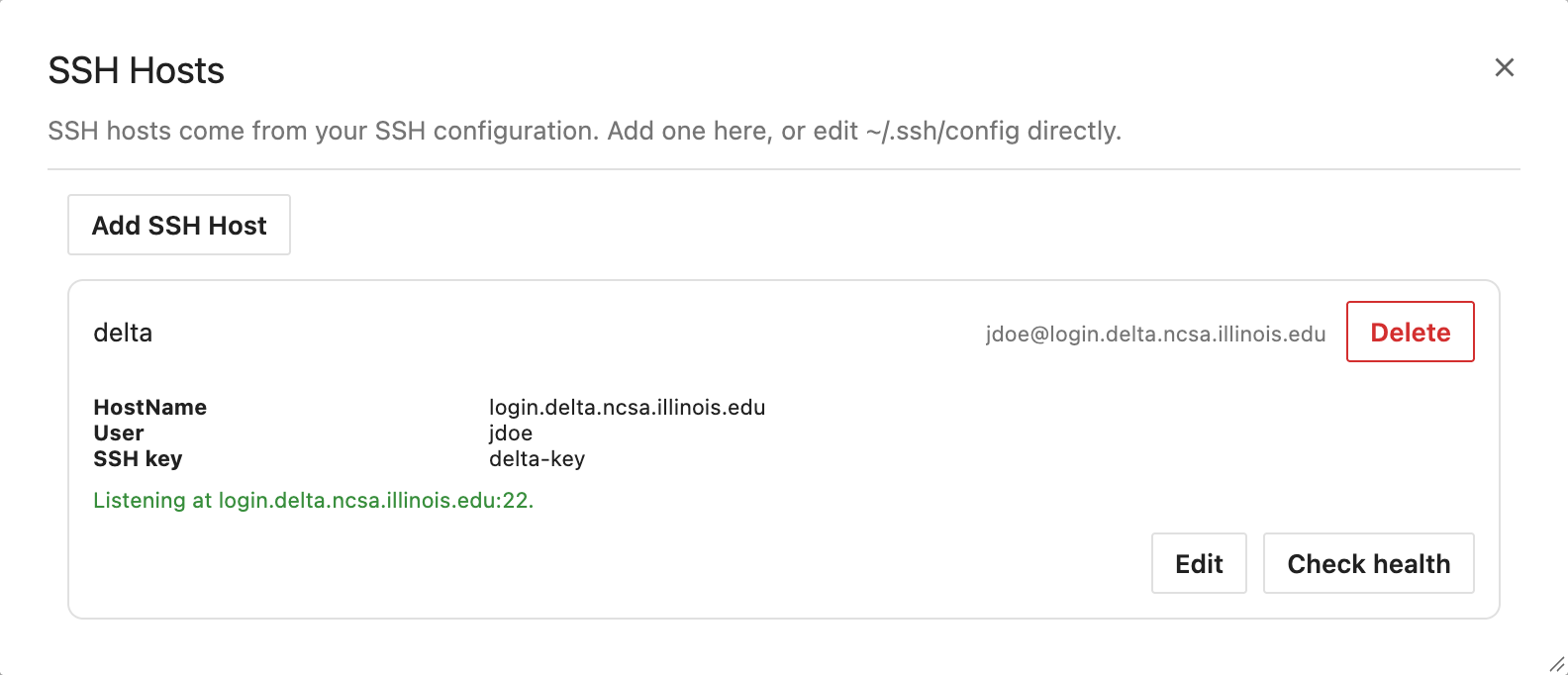
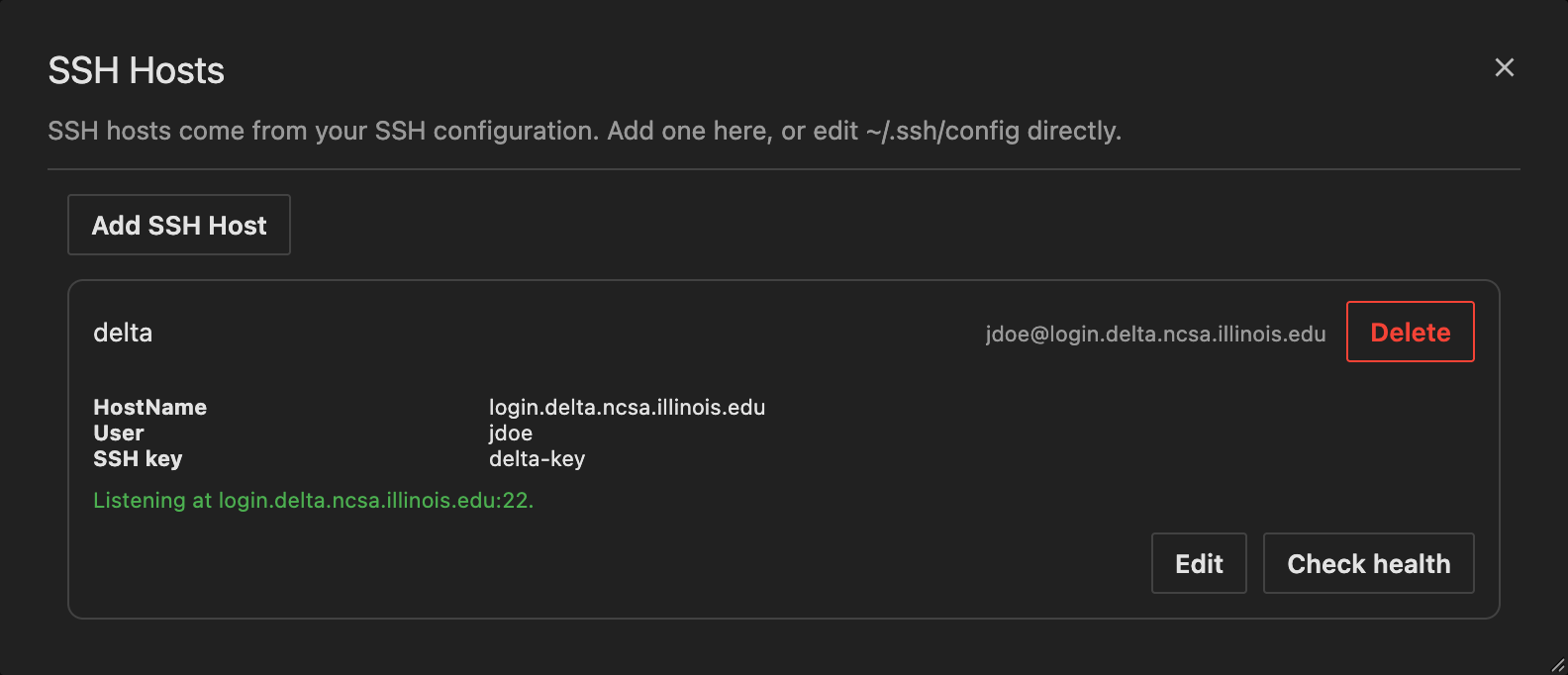
SSH Hosts dialog
Opened from SSH Hosts in the Sessions section or Manage SSH hosts in the Add Session dialog. Subtitle:
SSH hosts come from your SSH configuration. Add one here, or edit ~/.ssh/config directly. Source: SshHosts.ts.
The ~/.ssh/config these messages name is not on the user's computer: Airavata renders each account's stored hosts
to a per-account file that its ssh reads with -F. This dialog is the only way to change it.
| Element | Behaviour |
|---|---|
| Add SSH Host | Toggles the add form; Cancel while open |
| Host entry, collapsed | Alias, user@hostname (or Uses SSH defaults), Delete |
| Host entry, expanded | HostName, User, Port (when not 22), SSH key, each extra directive; Edit and Check health |
| Edit, Delete | Enabled only for hosts Airavata wrote; others have the tooltip This SSH host comes from your own SSH configuration. |
| Delete | Asks inline: Delete this entry from ~/.ssh/config? with Cancel and Delete |
| Check health | Connecting…, then Listening at <address>. or Nothing accepted a connection at <address>. in the success or error colour. Airavata opens a TCP connection to the first hop without logging in, and only to a public address |
| Empty list | No SSH hosts are configured. |
Add and edit form:
| Field | Behaviour |
|---|---|
| Alias | Add only; for example delta |
| SSH command | For example ssh -p 2222 me@delta.example.edu. Help: Paste the ssh command that already works. Hostname, user, port, identity, jump host, and -o options are kept. Edit pre-fills it from the entry |
| SSH key | None or a stored key. Help: SSH authentication to this SSH host uses the stored SSH key in place of any -i identity. |
| Submit | Save SSH host or Save changes; Saving… while it runs |
The help text lists an identity, but Airavata refuses -i. It accepts a host, -p, -l, -J and an allowlist of
-o options, and refuses any other flag and a remote command, so an entry cannot run a local program and its only
credential is a stored key.
Closing the dialog re-reads the host list for the Sessions section.
SSH authentication console
A terminal that opens when Airavata answers ssh_authentication_required: at the top of the open session or
Add Session dialog, or on the page when neither is open. Slurm discovery, validation in Review, Submit,
Start and Stop use it, and the action retries once after it succeeds. Source: ssh.ts.
| Message | Meaning |
|---|---|
<alias> is asking for credentials. | The console opened |
Opening interactive SSH authentication… | Connecting to Airavata |
Respond to the prompts below. Passwords and verification codes go straight to SSH and are not stored. | Connected; type answers into the terminal |
SSH authentication succeeded., then SSH authentication complete. | Logged in; the console closes |
SSH operation exited with status N., or Airavata's message | SSH ended without logging in |
SSH operation connection failed., SSH operation connection closed. | The WebSocket failed or closed |
cs-plane did not negotiate the required cybershuttle.v1 subprotocol. | Airavata refused the protocol; the socket closes with code 1002 |
Add Session dialog
Title Add Session. It has two steps, configuration and Review; on Submit it becomes the new session's
dialog. Source: CreateSessionForm.ts, SlurmDiscovery.ts, ReviewStep.ts.
Slurm discovery
| Element | Behaviour |
|---|---|
| SSH host | A list of aliases headed Select an SSH host…. With no host: No SSH hosts are configured., disabled, and a Manage SSH hosts button that opens the SSH Hosts dialog |
| Discovery panel | Picking a host asks Airavata for its Slurm accounts, partitions and home directory. Shows Querying Slurm…, Connecting to <alias>. and Cancel |
| Authentication | If the cluster needs a login, the SSH authentication console opens while the panel reads Querying Slurm…; discovery then retries once |
| Failure | Slurm discovery failed — <alias>, Airavata's message and Retry; also when the retry after authentication fails |
| Cancelled | Operation cancelled. Select Retry to continue. with Retry |
| No usable partition | No CPU or GPU Slurm partitions were discovered for <alias>. |
Configuration
Fields appear after discovery succeeds. Changing the host resets them.
| Field | Default | Limits and behaviour |
|---|---|---|
| Resource type | CPU, if any CPU partition exists | Radio CPU or GPU. A partition is GPU when it has a gpu or gpu:<type> GRES. Hidden when only one type exists |
| Slurm account | The first discovered account | Discovered accounts plus (no Slurm account), which sends no account |
| Partition | The first partition of the chosen type | name — N CPU · M MB, plus · k× type for GPU GRES; a bare gpu GRES is Generic GPU |
| Root folder | $HOME | Required. Help: Relative to <home> unless it starts with /, ~ or $. |
| Cores | 2 | 2 to the partition's CPUs |
| Memory (MB) | 4096 | 4096 to the partition's memory |
| Walltime (minutes) | 60 | 1 to 525600 (365 days) |
| GPU type | The partition's first GPU GRES | GPU only |
| GPUs | 1 | GPU only; 1 to the GRES count of the chosen type |
| Transport | Link | Checkboxes Link and Dev Tunnel; the last checked box cannot be cleared. Dev Tunnel is disabled until a Dev Tunnels account is connected, with the hint Connect a Dev Tunnels account in the account menu to use Dev Tunnel. |
The cores and memory minimums and the walltime maximum mirror the bounds Airavata enforces on create. Review is enabled once a partition is selected. Enter in a field submits the step instead of closing the dialog.
Review
| Element | Behaviour |
|---|---|
| Heading | Review Slurm job, with cs-plane validates the generated Slurm script before submission; the script appears only if validation fails. |
| Status | Validating with Slurm…, then Validation passed. <message> or Validation failed. <message>. Airavata runs sbatch --test-only with the generated script |
| Detail | Slurm's standard error, or the request's error |
| Generated Slurm script, Copy script | Only when validation failed |
| Retry validation | After a failure or an error |
| Back | Returns to the configuration step with the fields kept |
| Submit | Enabled only after validation passed; Submitting… while it runs. Creates the session, starts it and shows its session dialog |
Each request carries an idempotency key, kept while the reviewed request is unchanged, so resubmitting it never creates a second session.
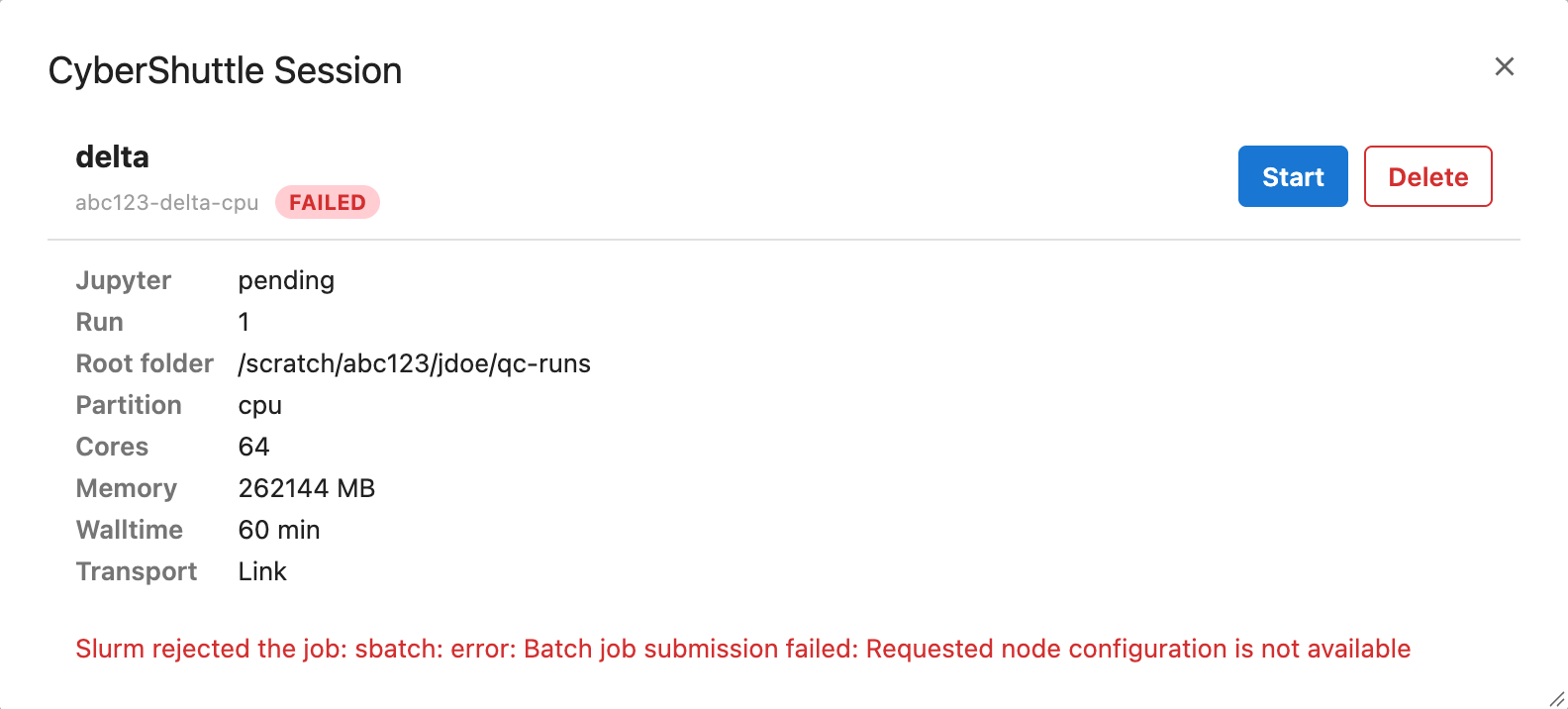
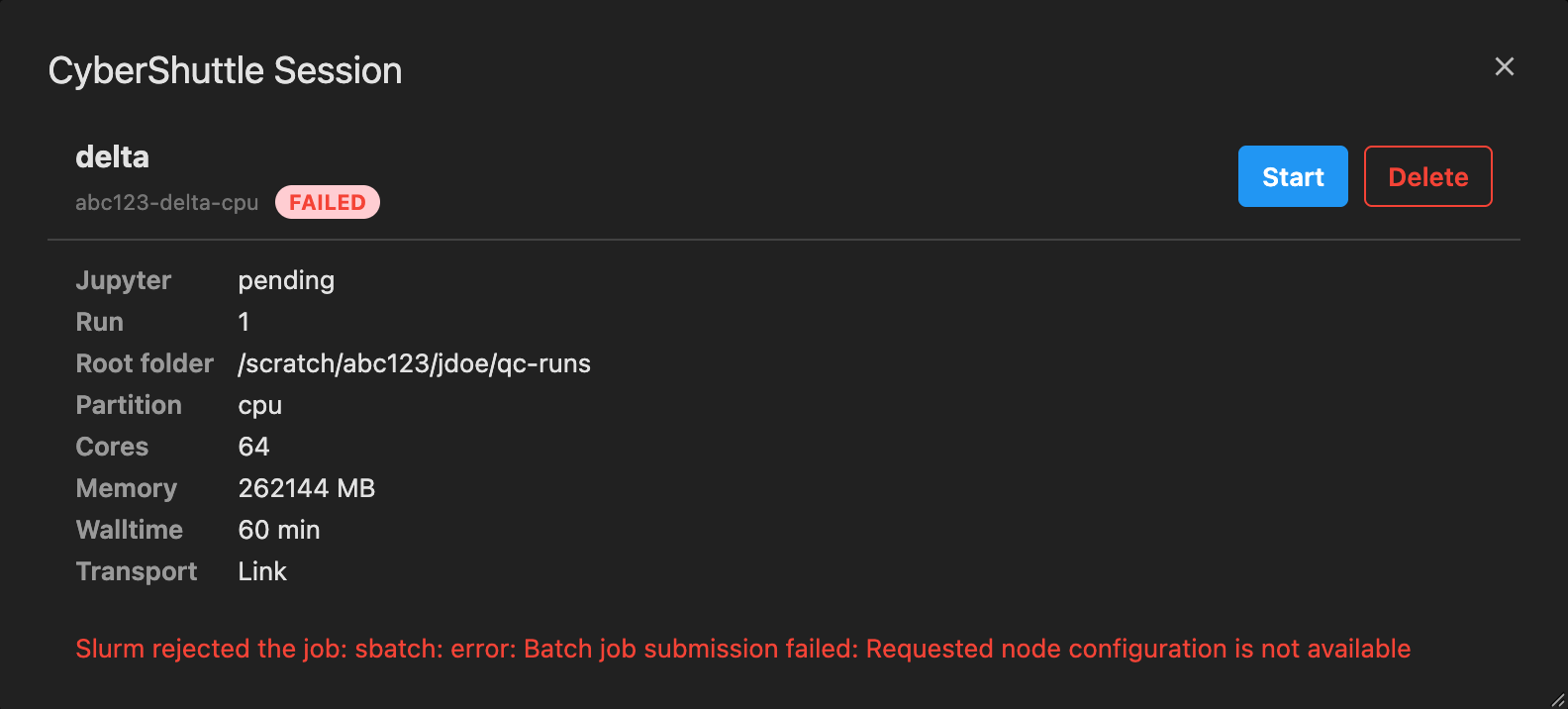
Session dialog
Title CyberShuttle Session. Source: SessionDetail.ts.
| Part | Content |
|---|---|
| Header | Alias, Slurm account or (no Slurm account), state pill |
| Actions | Start, Stop, Connect and Delete as in Actions by state. On the current session a Connected pill replaces Connect. A spinner shows while an action runs |
| Details | Jupyter (ready or pending), Run (seq), Root folder, Partition, Cores, Memory (MB), Walltime (min), Transport (Link, Dev Tunnel or Link + Dev Tunnel), GPU (count and type, when requested), Remaining (while STARTING or READY, highlighted at 10 minutes or less) |
| Usage plots | While live and samples exist: CPU as x.x / N cores against the requested cores, MEM as x.x / y.y GB, GPU as N% busy for the busiest GPU |
| Stopping note | Session <alias> is stopping... while STOPPING |
| Error | The last action's error, else the session's own error from Airavata |
| Status | The live startup log until the session finishes; each line time-stamped, its stream (status, stdout or stderr) in the tooltip. Keeps the scroll position, or follows the end when scrolled to the bottom |
Before the first poll returns the session, the dialog reads Waiting for live session state….
Connect reloads the page on the session, first saving open documents when another session is current; Architecture gives the sequence and the URL.
Actions by state
Sessions and runs defines the states.
| State | Actions |
|---|---|
SUBMITTING, QUEUED, STARTING | Stop, Delete |
READY | Stop, Connect once access is granted, Delete |
STOPPING | Delete |
STOPPED, FAILED | Start, which submits a new run; Delete |
Confirmations
Source: session-actions.ts.
| Action | Title | Body | Buttons |
|---|---|---|---|
| Stop | Stop session | Cancels the Slurm job on <alias>. Anything unsaved in this session's kernels and terminals is lost. | Cancel, Stop |
| Delete, live session | Stop and delete session | <root folder> on <alias> is <state>. Its Slurm job will be stopped now and the session deleted after it ends. (state in lowercase) | Cancel, Stop and delete |
| Delete, finished session | Delete session | Delete <root folder> on <alias>? It has already ended. | Cancel, Delete |
Walltime and run history
Status bar
On a session page, the status item @cybershuttle/jupyter:walltime-status shows a clock and the remaining walltime
while the session is STARTING or READY, in the warning colour at 10 minutes or less. Its tooltip reads
<alias>: <time> of the session's <N> minutes left. It draws from the Launcher panel's state, polled every second.
Once the session has finished or its walltime has run out, the page returns to the address without a session and opens
Run History on that run. Source: usage.ts, CyberShuttlePanel.ts.
Run History dialog
Opened from Run History in the Sessions section, or automatically after a session page ends. Subtitle: Every run of your sessions, running ones first. A run is kept even after its session is deleted. Source: RunHistory.ts,
usage.ts.
| Element | Behaviour |
|---|---|
| Filter | All, JupyterLab, VS Code |
| Entry | Alias, time and state pill. Live entries read started <time> or not started yet; finished entries give the end time |
| Live entry, expanded | State, Partition, Cores, Memory, Remaining (while STARTING or READY), and the latest usage plots |
| Finished entry, expanded | Run report, below |
| Empty | No runs yet., or No runs on this platform. with a filter |
Run report:
| Row | Content |
|---|---|
| Ended | End time |
| Outcome | The run's final state |
| Ran for | Elapsed time from Slurm accounting, else end minus start, else — |
| Granted cores | Cores Slurm granted |
| Peak memory | Slurm's maximum resident set size |
| Requested | Memory requested |
| CPU used, Memory used | N% of requested |
| Plots | Peak CPU, memory and GPU usage; CPU against the granted cores when known |
| Accounting note | Within 10 minutes of the end: Slurm's accounting for this run has not flushed yet; peak memory and efficiency will appear here. Later: Slurm recorded no accounting for this run, so peak memory and efficiency are unknown. |
| Error, Status | The run's error, and its startup log as frozen at the end |
Accounting rows appear only when Slurm reported them.
Commands
The command @cybershuttle/jupyter:select-session, labelled Select Session…, or Switch Session… on a session
page, opens the Launcher with the Sessions section. Its palette category is CyberShuttle.
Without a connected session, commands that open or create a notebook, console or terminal, or run code, open the Launcher instead, and the requested document opens after Connect. Architecture lists the commands.