Sessions and runs
This page assumes you have completed Getting started.
A session is a saved set of resources on one cluster. Each Start submits a new Slurm job, called a run. A session's resources are fixed when it is added; to change them, add another session.
Session states
Clicking a session card opens the session dialog: its resources, live CPU, memory and GPU plots, and the startup log. The diagram shows the usual path of one run through the states:
| State | Meaning |
|---|---|
SUBMITTING | Airavata prepares the cluster and submits the job |
QUEUED | Waiting in the Slurm queue; the job holds no resources yet |
STARTING | Running; the walltime counts from here. Linkspan builds the environment and starts Jupyter Server |
READY | Reachable; Connect appears |
STOPPING | Airavata runs scancel |
STOPPED, FAILED | Finished; Start submits a new run with the same resources |
Stop works from every state before STOPPING, and any of them can end in FAILED. A FAILED session shows its
error in the session dialog; Troubleshooting lists the common causes.
Delete removes a session, stopping its job first if it is live. Its runs stay in Run History, and its files on the cluster are not touched.
Walltime
A session runs until you stop it or its walltime ends; closing the tab or signing out does not stop it. The status bar shows the time left and turns to a warning colour at ten minutes. The walltime cannot be extended, so save your work before it ends. At the end, the page opens Run History on that run. Saved files remain on the cluster; kernel state is lost.
Switching sessions
Several sessions can run at once; a browser tab is connected to one of them. To switch, run Select Session… from
the command palette (Switch Session… once a session is connected) and click Connect on another READY
session. Open documents are saved and the page reloads. The session you leave keeps running and is charged until you
stop it.
Each session's JupyterLab layout is stored on the cluster, so the same tabs and panels reopen from another browser or after a new run.
Run history
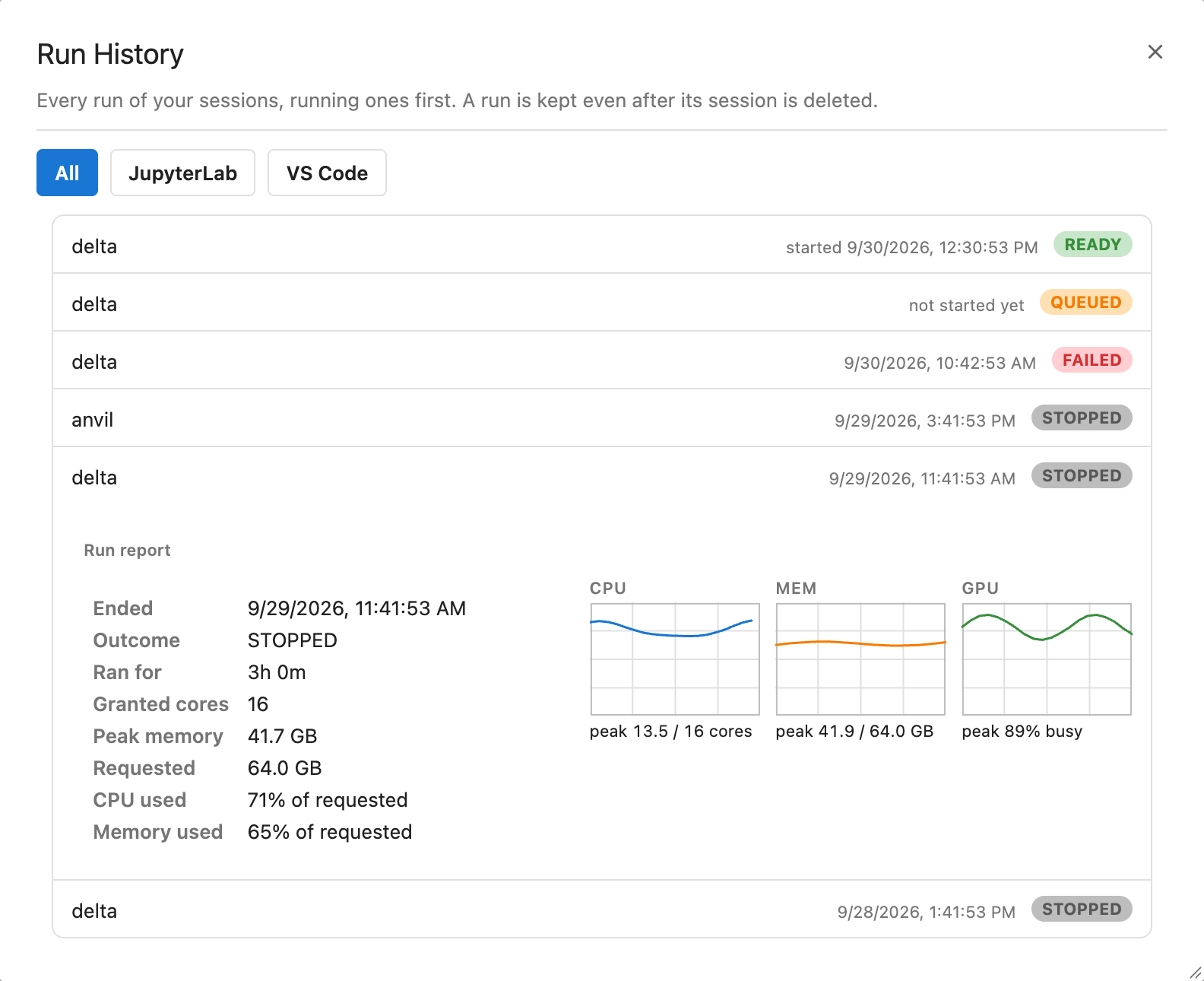
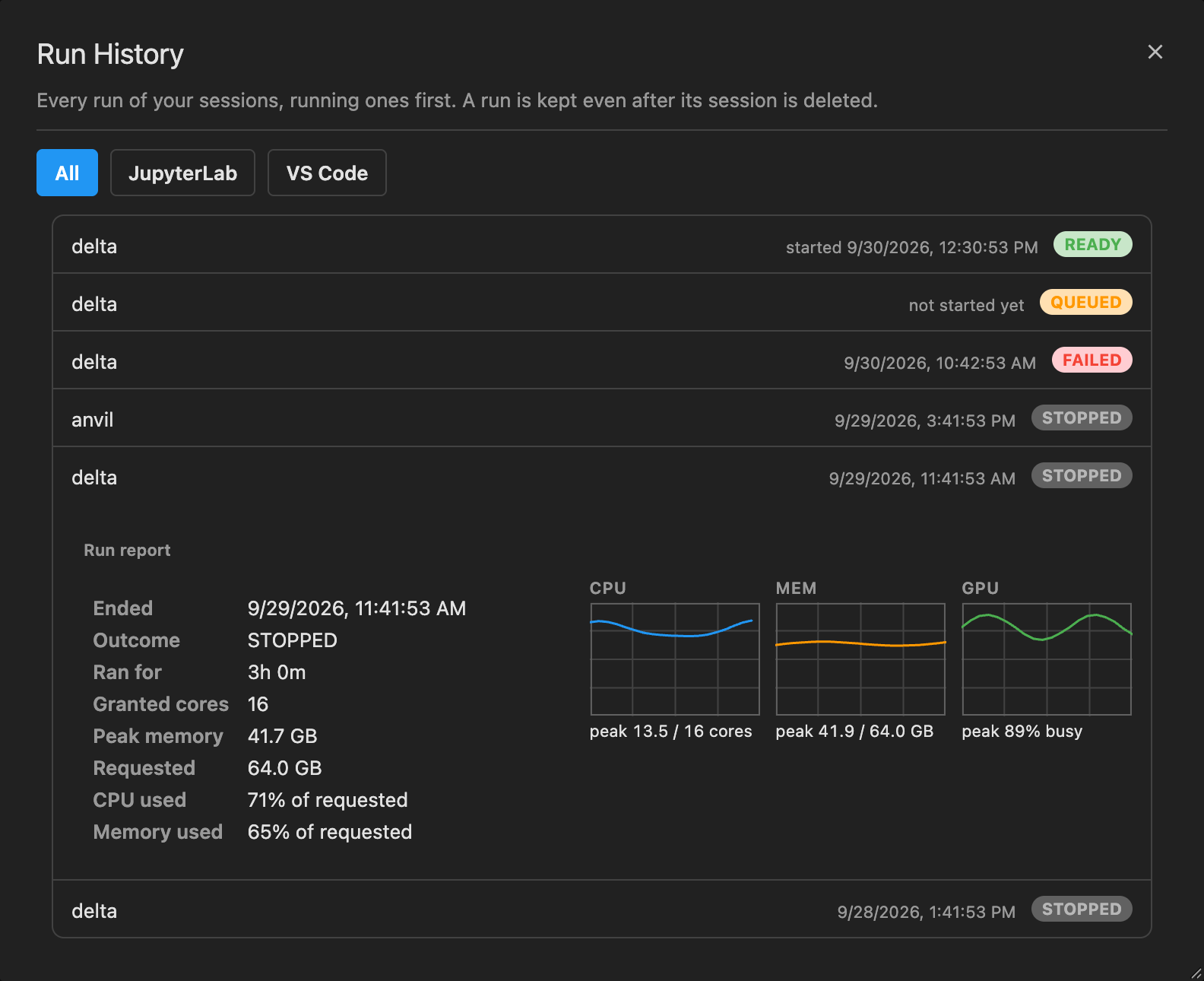
Run History in the Sessions section lists each run with:
- its outcome, any error, and the startup log as it stood at the end;
- its duration and the cores Slurm granted;
- peak memory, and CPU and memory used as a share of the request.
Use it to see why a run ended and to size the next request. The list also holds runs of deleted sessions and, under the VS Code filter, runs started from CS Bridge.
The figures come from Slurm accounting and can take up to ten minutes after the run ends to appear; a cluster without accounting shows none.
Dev Tunnels
A transport is how traffic travels between Airavata and the compute node.
| Transport | Path | Needs |
|---|---|---|
| Link (default) | A connection Linkspan opens from the node to Airavata | Nothing else |
| Dev Tunnel | Microsoft's Dev Tunnels relay, which can read the traffic; see Cluster security | A Microsoft or GitHub account; each run's tunnel is created in it and removed when the run stops |
The session form's Transport field has a box for each. With both ticked, Airavata uses the link and falls back to the Dev Tunnel while the link is down.
To use a Dev Tunnel:
-
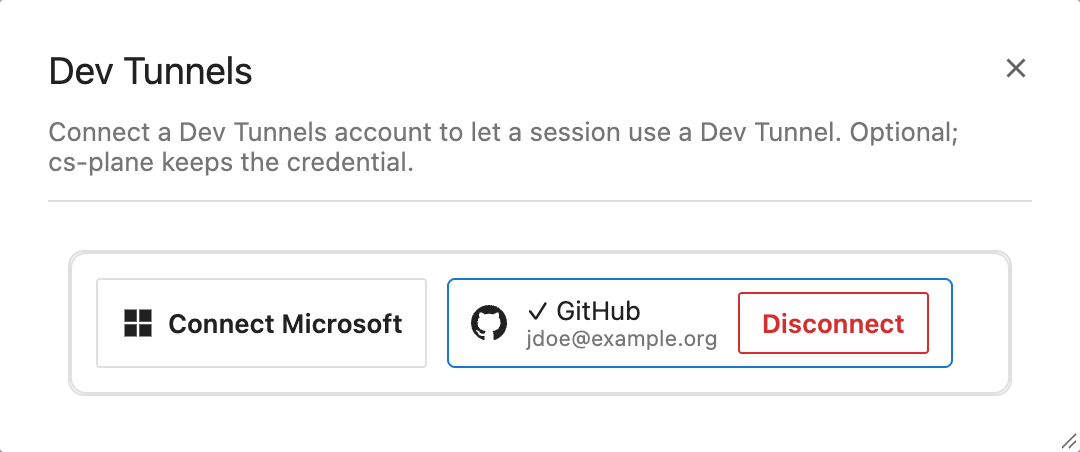
Open the account menu, then Dev Tunnels, and click Connect Microsoft or Connect GitHub.
-
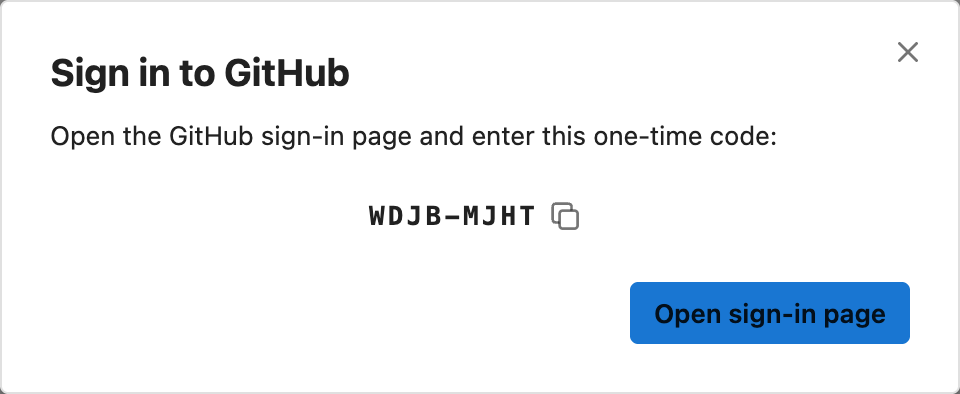
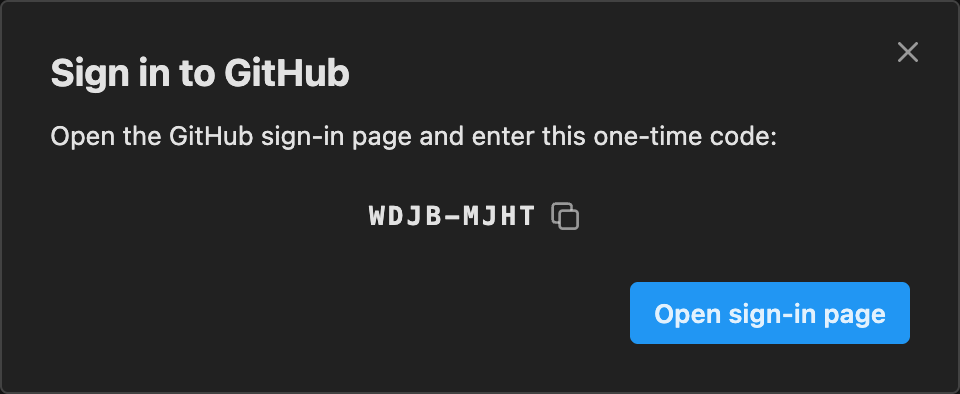
Open the sign-in page shown and enter the one-time code. The code dialog closes and the account appears with a check mark.
-
When you add a session, tick Dev Tunnel under Transport.
The session dialog's Transport row then reads Dev Tunnel or Link + Dev Tunnel.
Removing CS Jupyter data
Signing out deletes nothing, and a running session keeps running. To remove what Airavata and the cluster hold for you:
- Open each session and click Delete, then Stop and delete if it is live. Airavata stops the Slurm job and removes the session once the job ends; keep the page open until its card disappears. Its runs stay in Run History, and nothing on the cluster is touched.
- Open the account menu, then SSH Keys, and Delete each key. Airavata deletes the stored private key and unassigns it from every SSH host.
- Click SSH Hosts in the Sessions section and Delete each entry. Only entries added there can be deleted.
- Open the account menu, then Dev Tunnels, and click Disconnect. Airavata deletes the stored token; it does not revoke the sign-in at Microsoft or GitHub.
- If you added the uploaded key's public half to
~/.ssh/authorized_keyson the cluster, remove that line. An open SSH connection outlives the key; see Cluster security. - Delete what remains on the cluster, once no session runs:
~/.cybershuttle/holds the environment (bin/,python/,cache/uv/,jupyter-env/), each run's logs inlogs/and each session's workflow insessions/; each session's JupyterLab layouts are in.cybershuttle/workspaces/under its Root folder. Nothing prunes them.
Run History entries and the account itself cannot be deleted.