Getting started
This tutorial takes you from signing in to a notebook running on a Slurm compute node, and back to a stopped job.
Before you start, meet the requirements and have at hand the ssh command you use to reach
the cluster. If you log in with a key, also have its private key file, and read
Credentials and data before uploading it.
Every step happens in the JupyterLab Launcher, the tab that opens first, in its title row and Sessions section. The file browser stays empty until step 5.
1. Sign in
Open the public CS Jupyter instance at jupyter.cybershuttle.org, or your centre's own, and click Sign in, in the welcome dialog or the title row. CILogon opens; choose your institution, log in, and you return to the site.
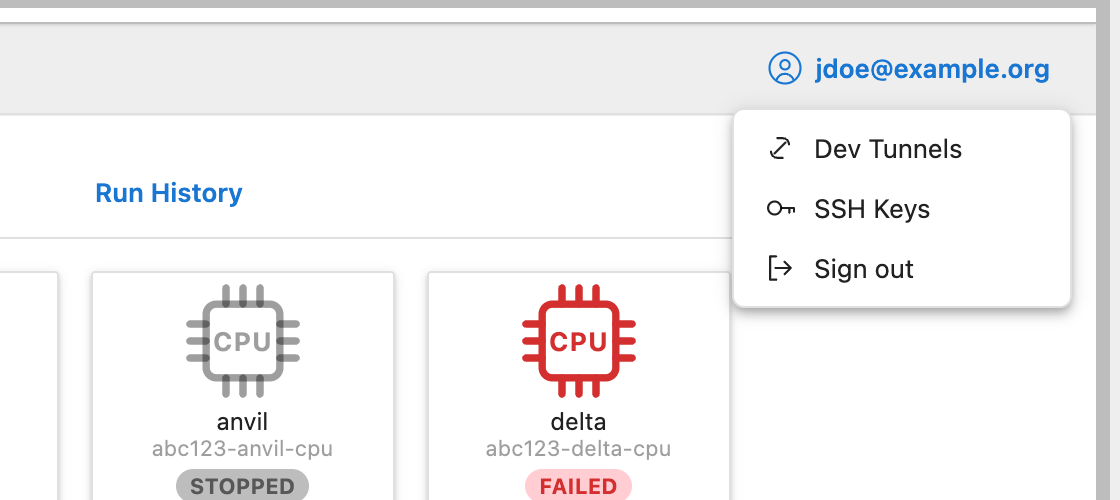
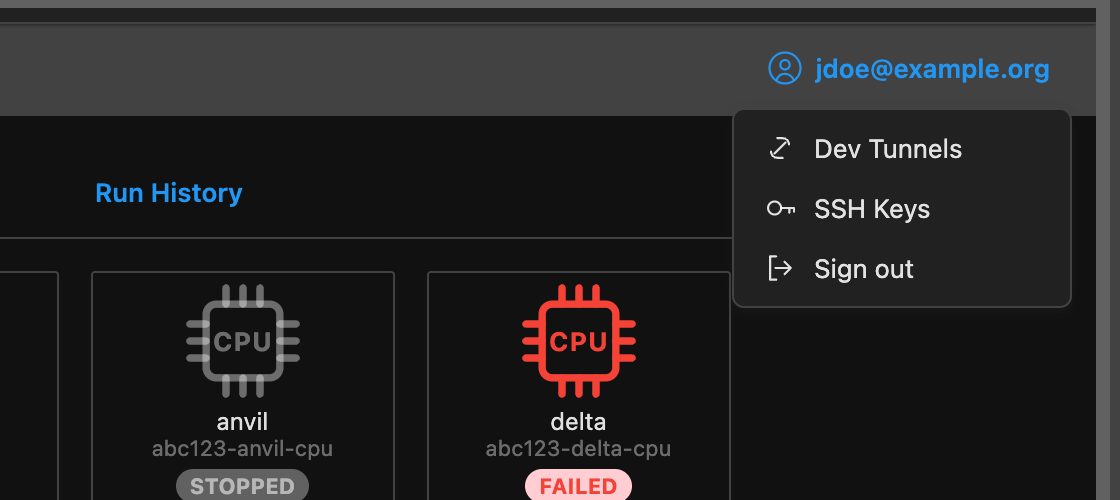
Result: the Sign in button in the title row shows your account name and opens the account menu. Sign-in lasts for that browser tab only.
2. Add a cluster
-
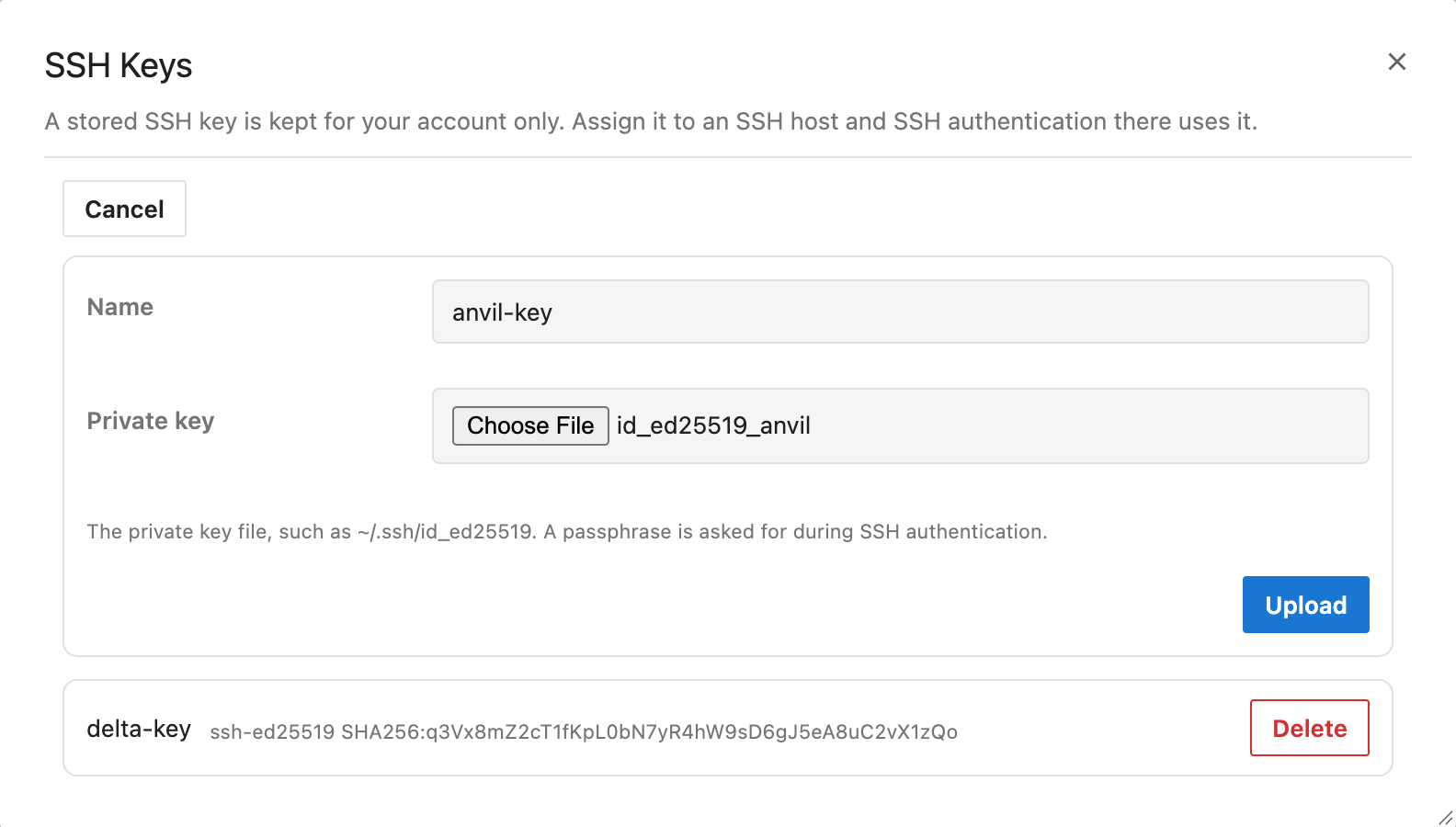
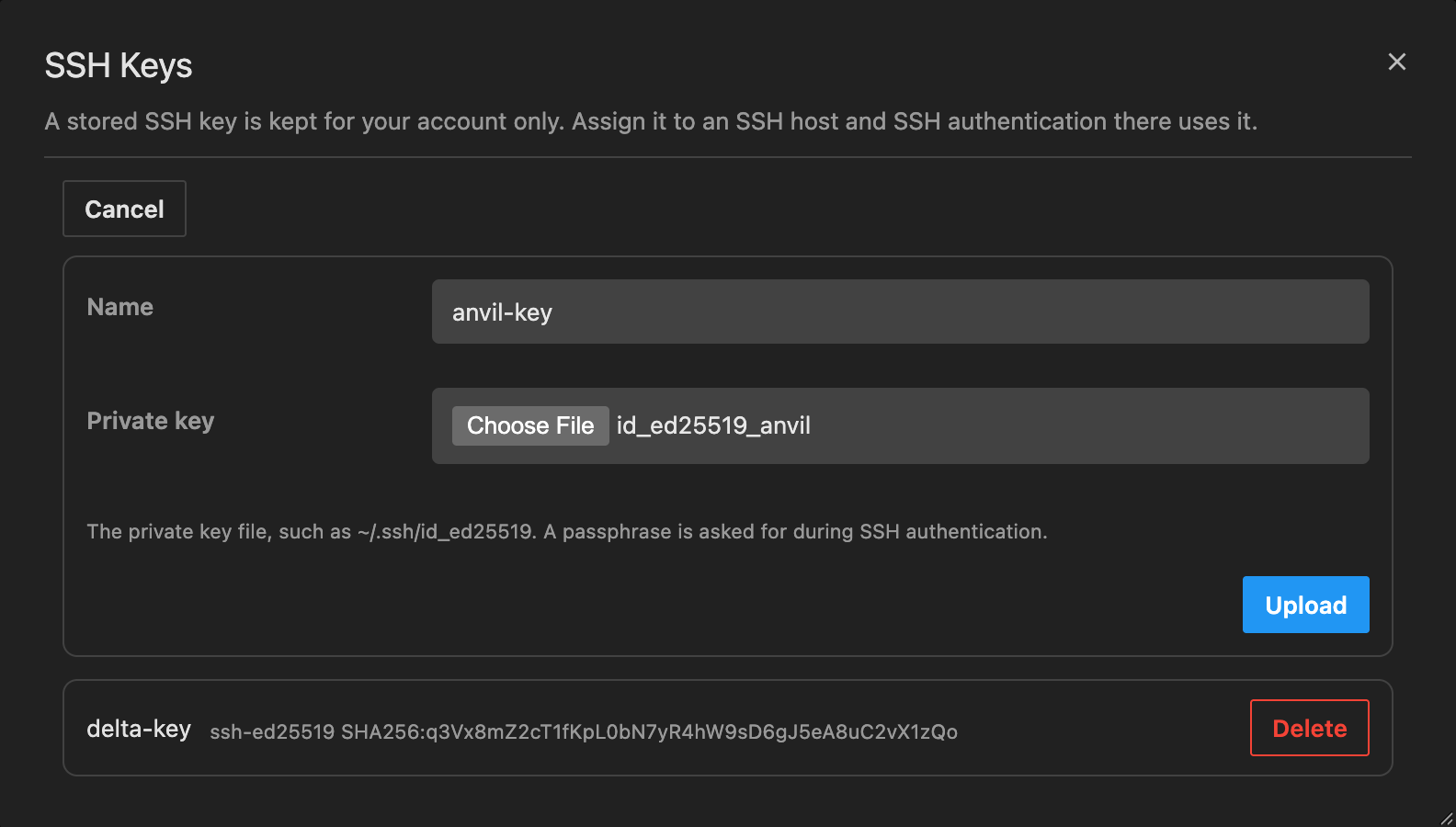
If you log in with a key, open the account menu, then SSH Keys → Upload key. Give the key a name, choose the private key file and click Upload. The key appears in the list with its type and fingerprint. Skip this for password or MFA login.
-
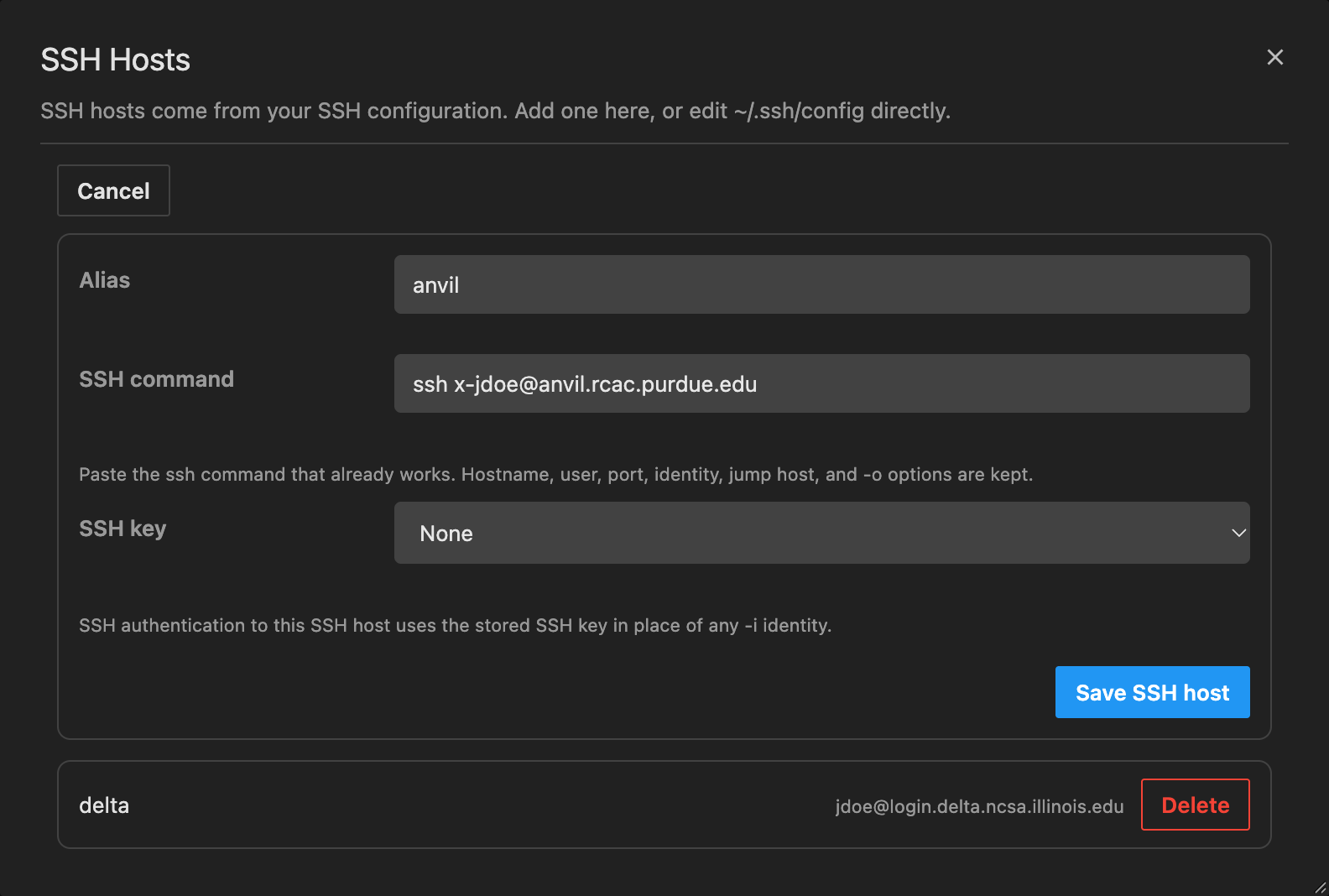
Click SSH Hosts in the Sessions section, then Add SSH Host, and fill in:
Field Example Alias deltaSSH command ssh -p 22 jdoe@login.delta.ncsa.illinois.eduSSH key The key uploaded above, or None for password or MFA login For the SSH command, paste the one that already works for you and keep only the host, user, port (
-p), jump host (-J) and-ooptions. Remove-i; the SSH key field replaces it.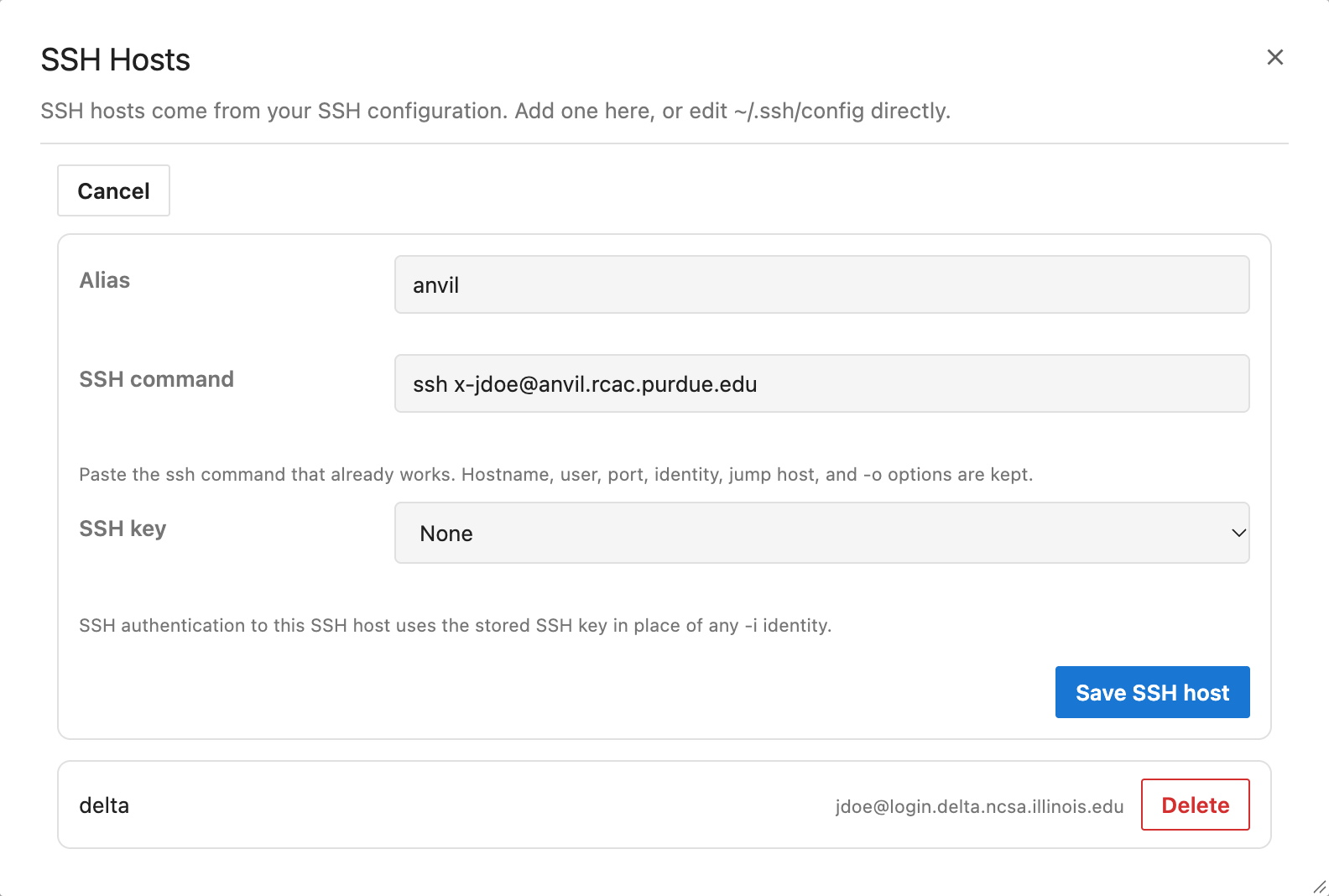
-
Click Save SSH host.
Result: the host appears in the SSH Hosts list. Expand it and click Check health to test that the login node, or the first jump host, accepts a connection; it does not check your credentials.
3. Log in to the cluster
Click Add Session in the Sessions section and pick the cluster; Airavata logs in to it to read its Slurm accounts and partitions. An SSH authentication terminal opens in the browser. Answer the password, key passphrase, MFA or host key prompts as you would in your own terminal; nothing you type is stored. A key without a passphrase needs no answer.
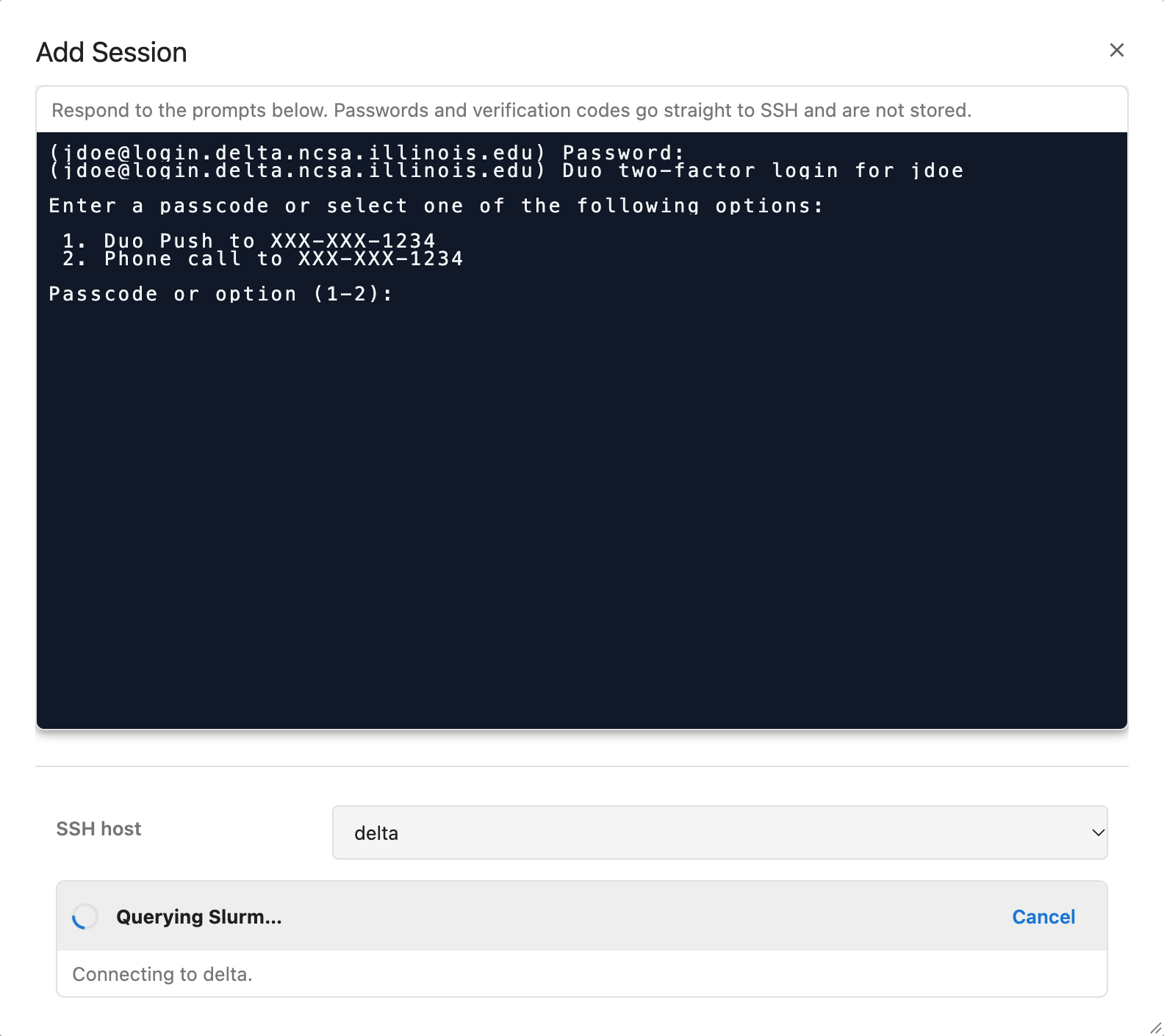
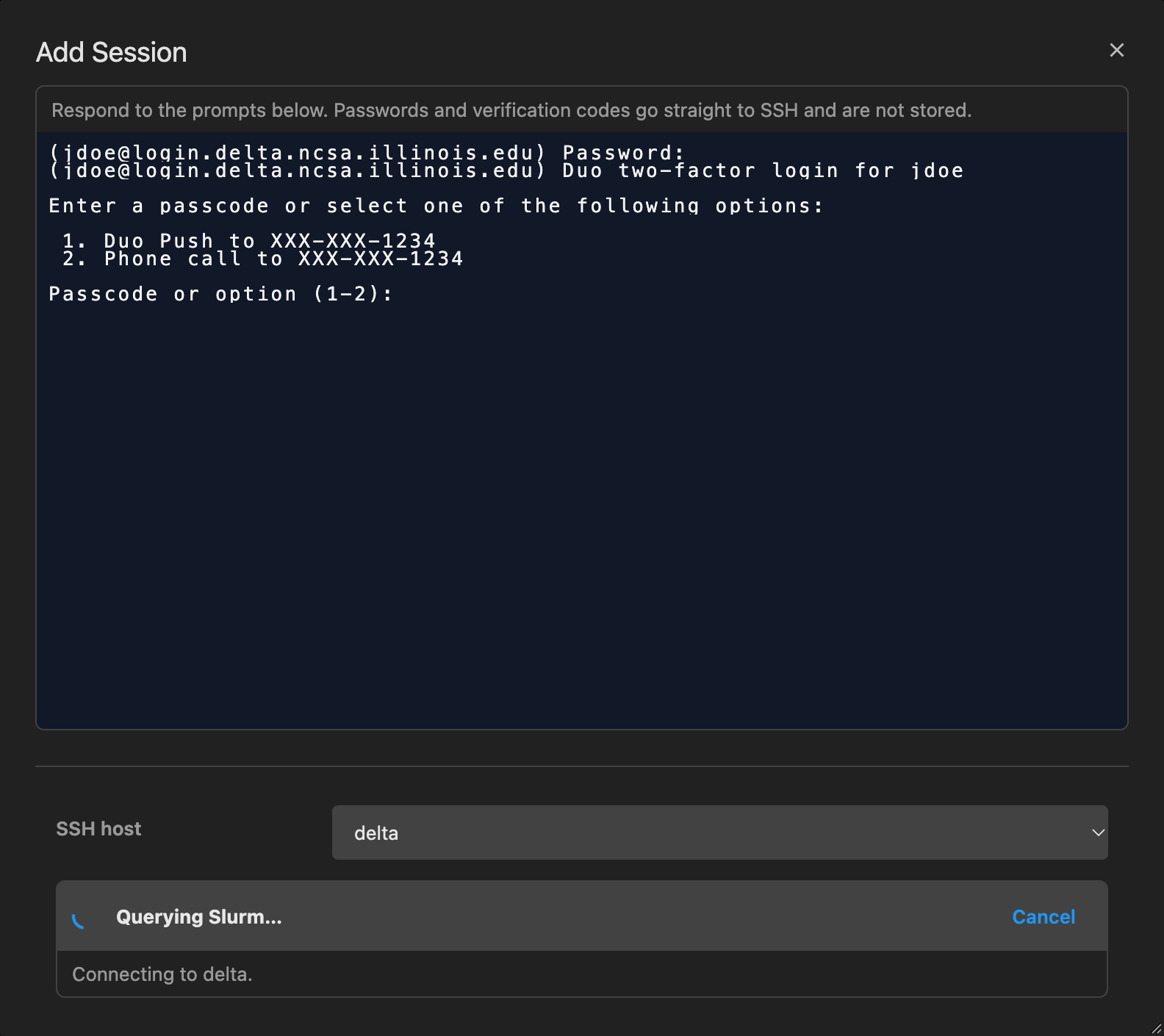
Result: the terminal reports SSH authentication succeeded. and closes. You are not prompted again while Airavata
keeps the connection open.
4. Start a session
A session is a saved set of resources on one cluster; each time you start it, Airavata submits a new Slurm job.
Once the login succeeds, the Add Session form offers only the Slurm accounts and partitions the cluster reports:
| Field | Default |
|---|---|
| Resource type | CPU; hidden if the cluster has one kind of partition |
| Slurm account | Your first account |
| Partition | The first of that type, shown as name — N CPU · M MB plus its GPUs |
| Root folder | $HOME |
| Cores | 2, up to the partition's CPUs |
| Memory (MB) | 4096, up to the partition's memory |
| Walltime (minutes) | 60 |
| GPU type, GPUs | The partition's first GPU type, 1 GPU |
| Transport | Link; see Dev Tunnels |
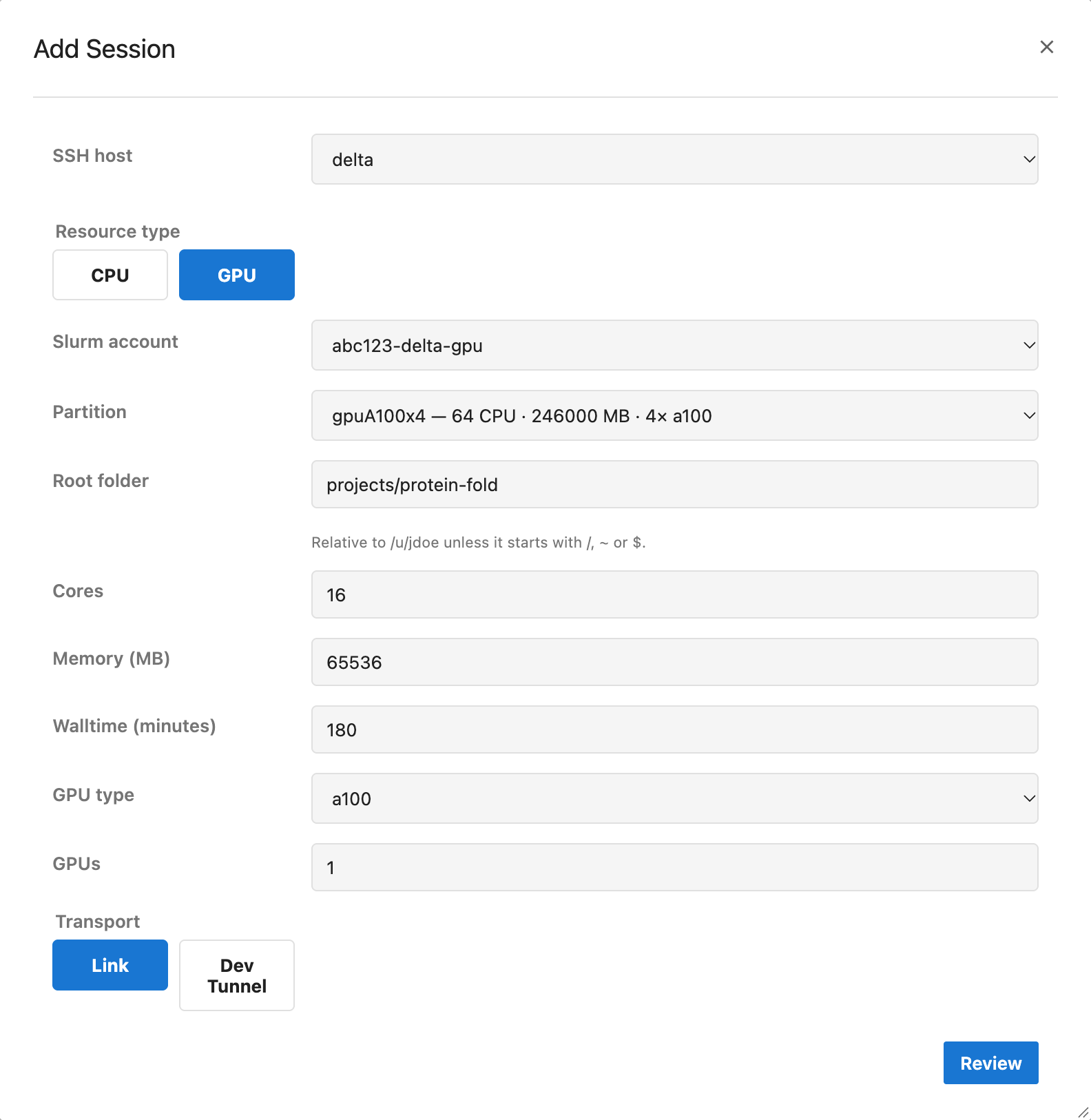
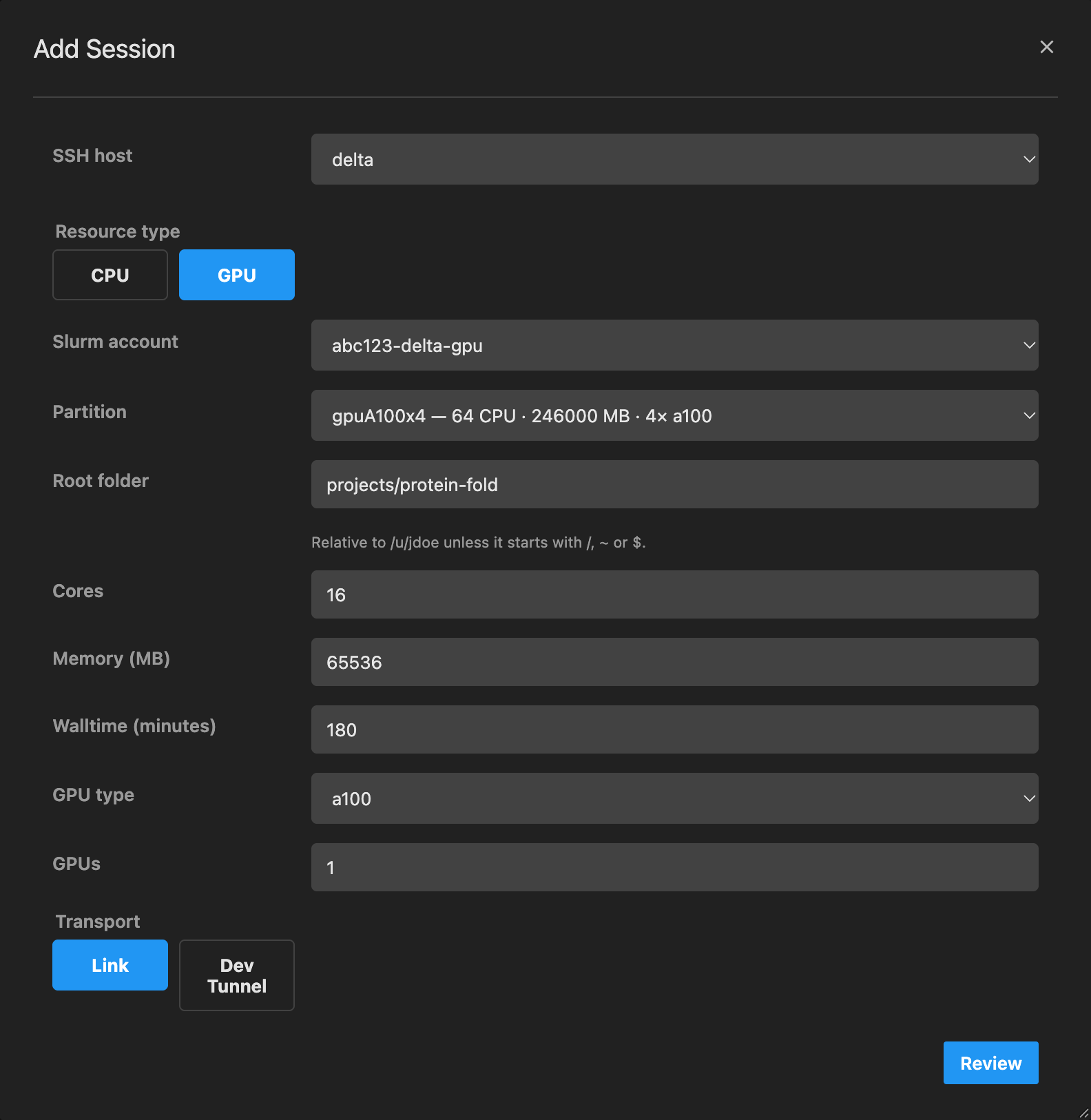
Your allocation is charged for what you request, so request what the notebook needs. Stop ends the charge early, but a running session's walltime cannot be extended.
The root folder is where the file browser opens and the highest folder it can reach. A relative path is under your
home directory; a path may start with a cluster variable, such as $SCRATCH/myproject.
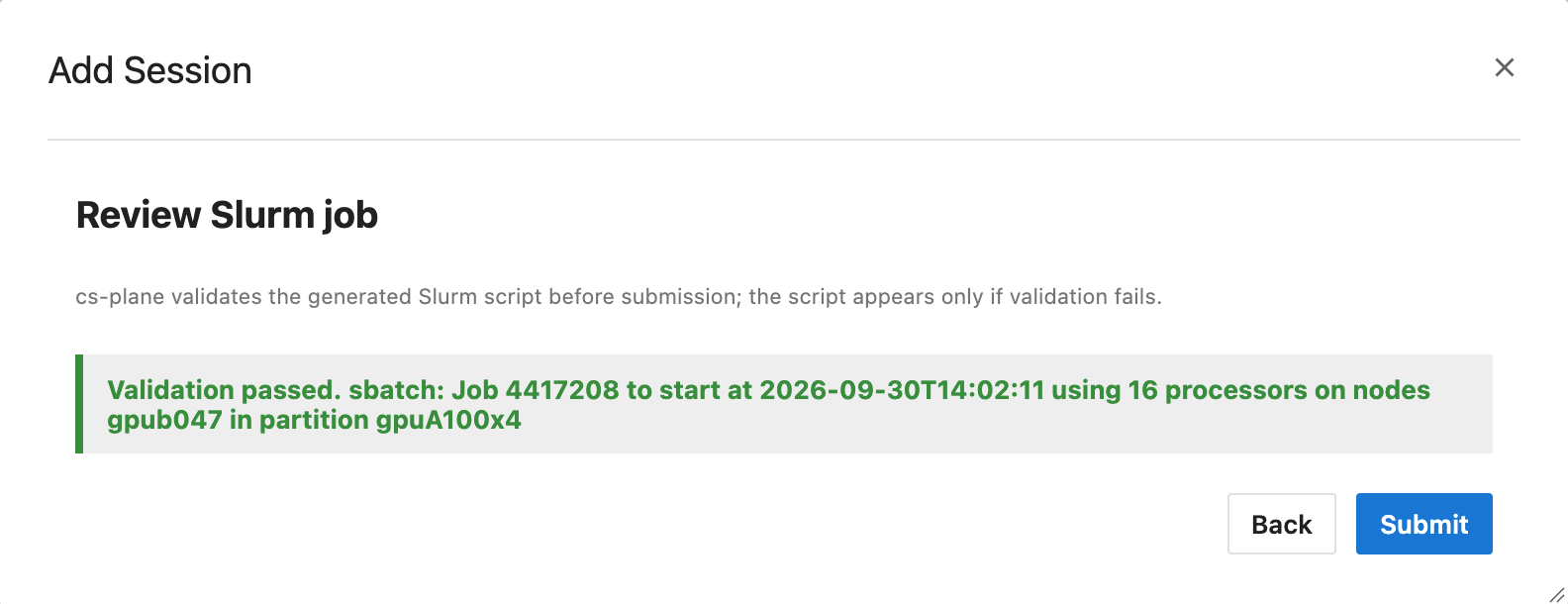
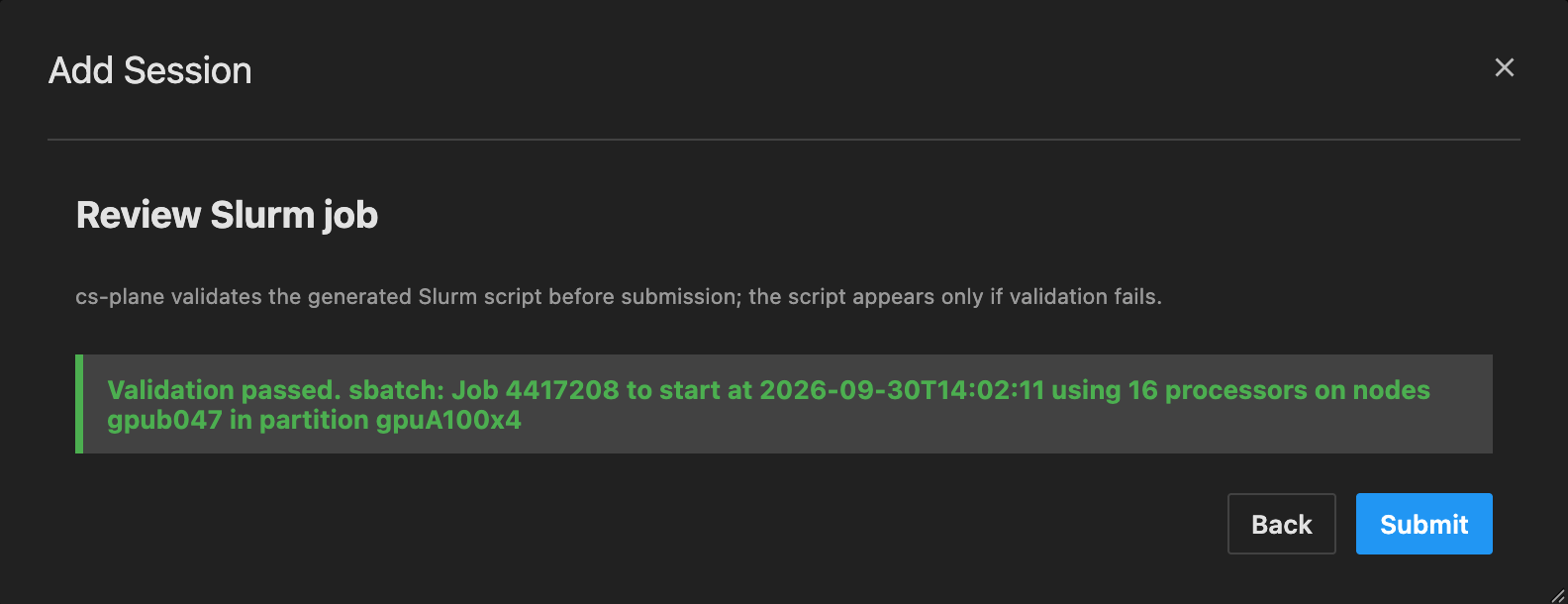
Click Review, which asks Slurm (sbatch --test-only) whether it would accept the job. If Slurm refuses, the review
shows its message; click Back, change the account, partition or resources, and review again. Once the review reads
Validation passed., click Submit.
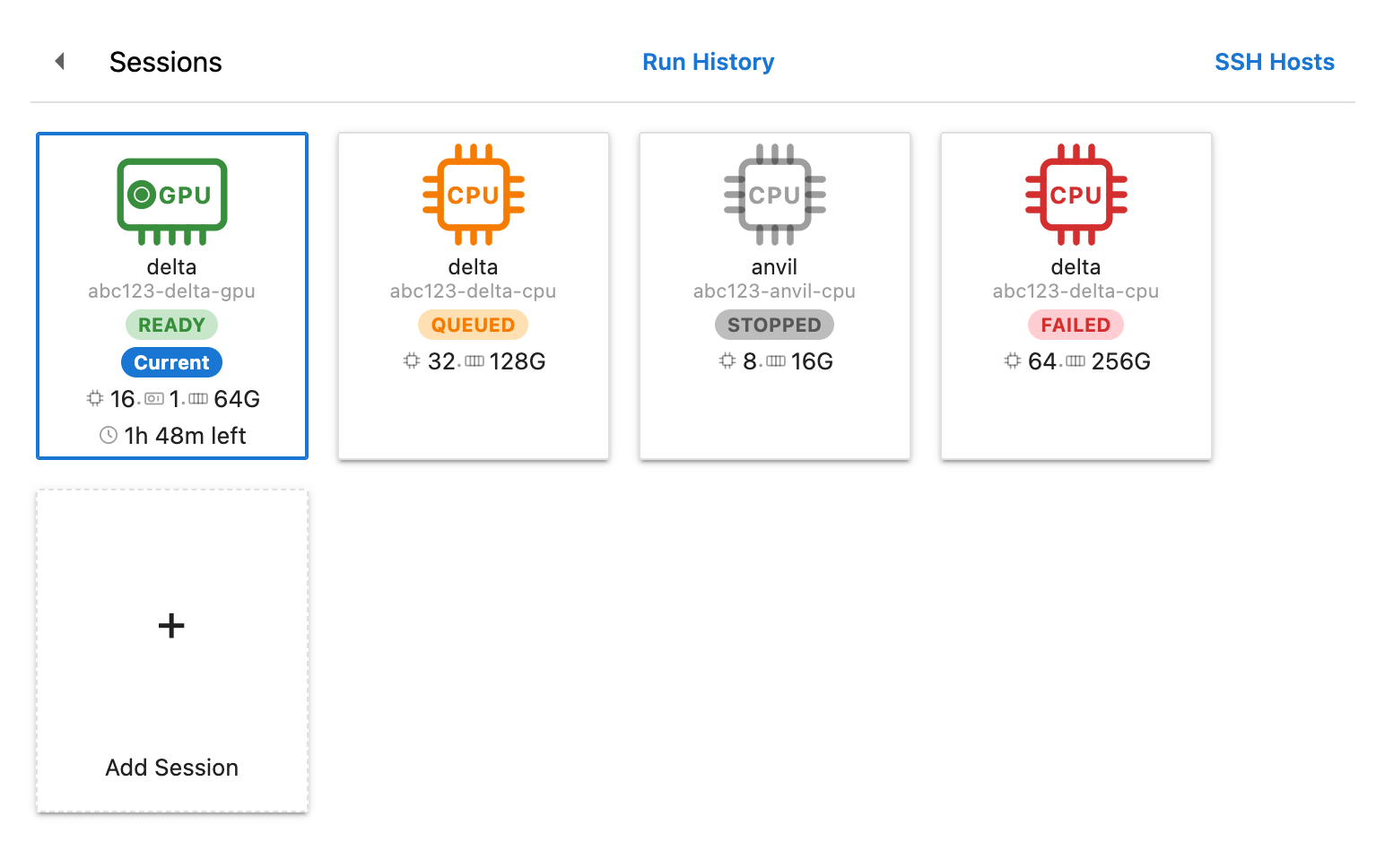
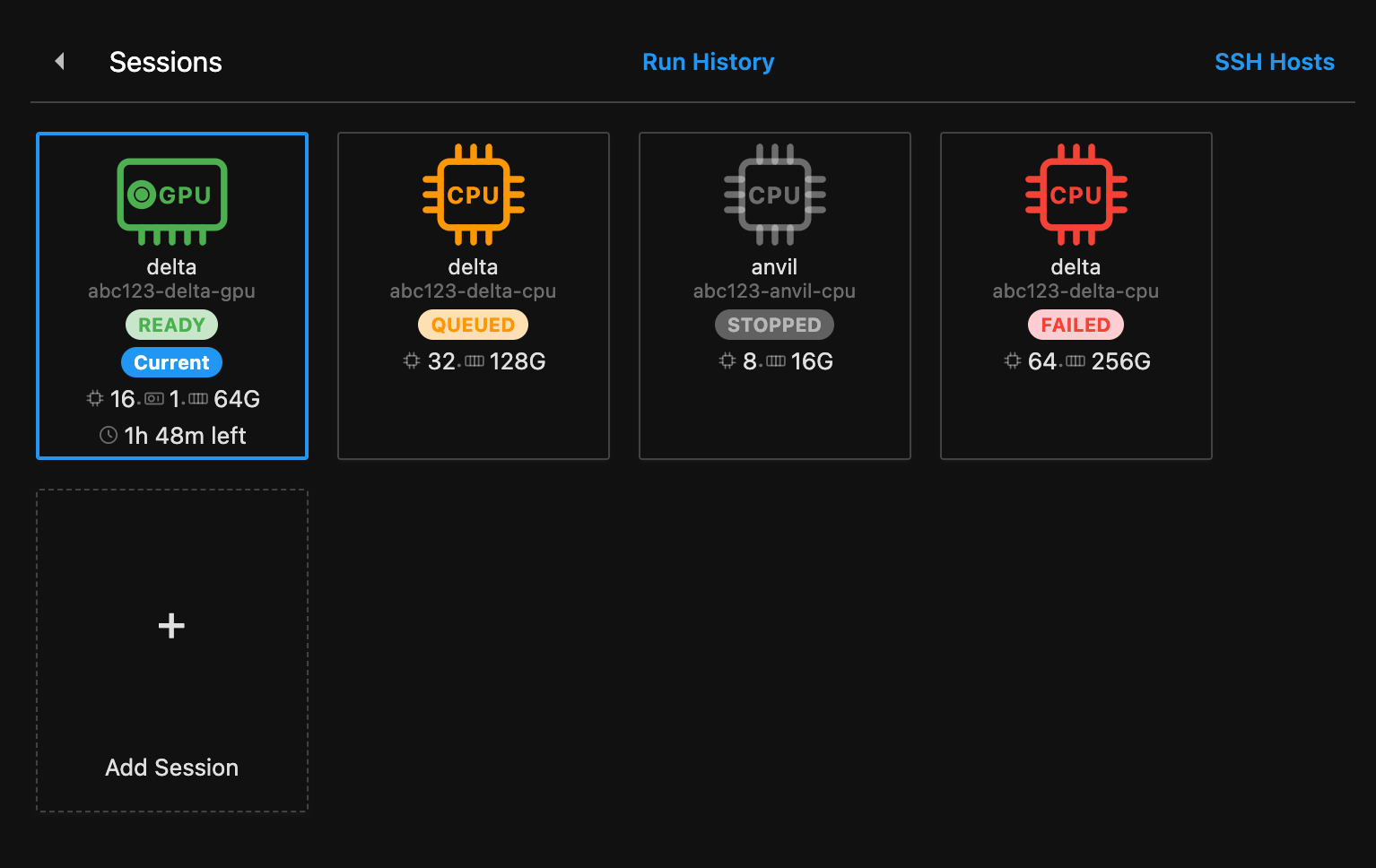
Result: the dialog becomes the session's own, with its state and a startup log, and a session card appears under
Sessions. The state is SUBMITTING, then QUEUED while the job waits in the Slurm queue.
5. Connect
When Slurm starts the job, the session moves through STARTING to READY. The first session on a cluster stays a few
minutes longer in STARTING while it builds the Python environment. Once the session is
READY, click Connect in the session dialog; if you closed it, click the session card.
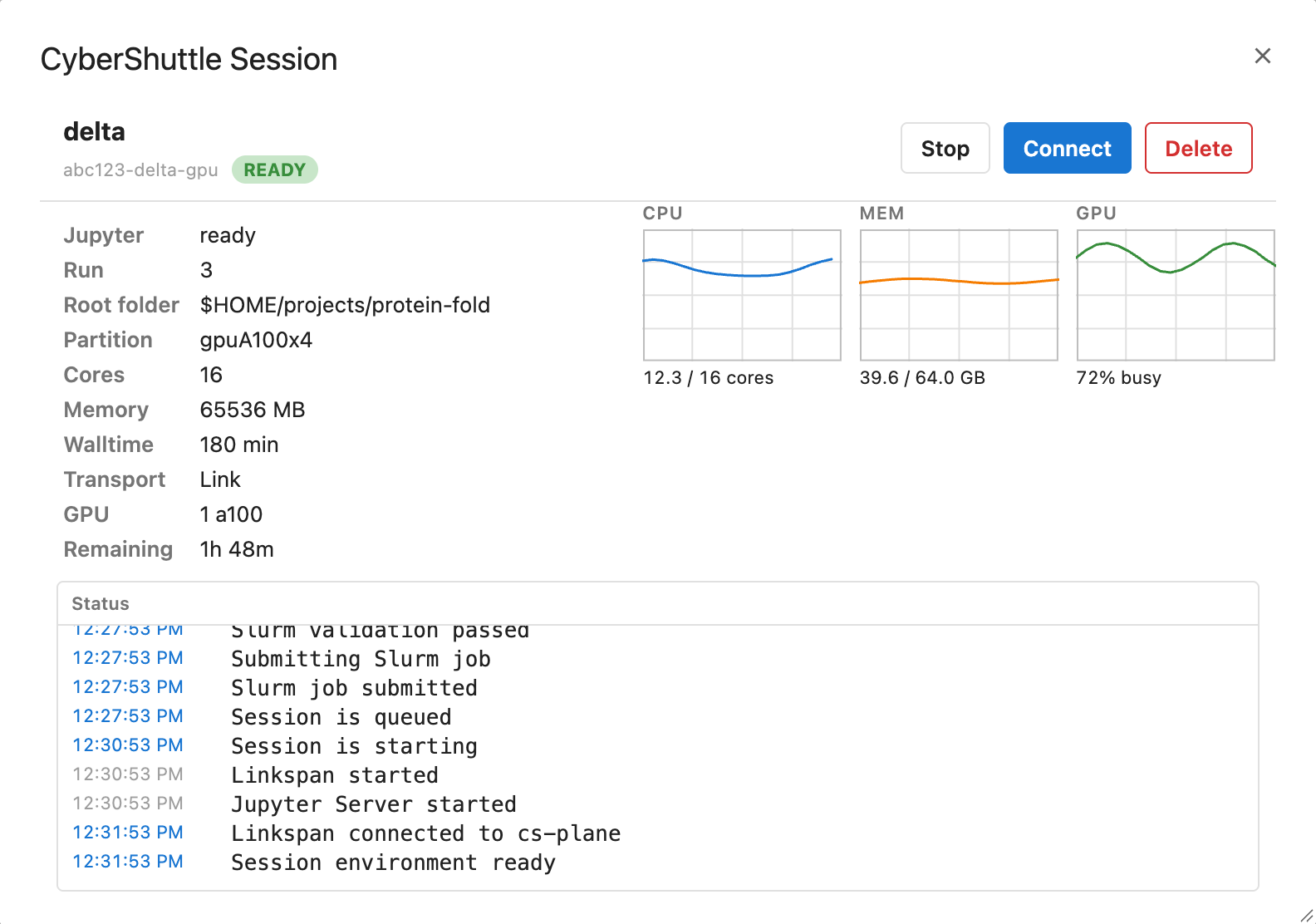
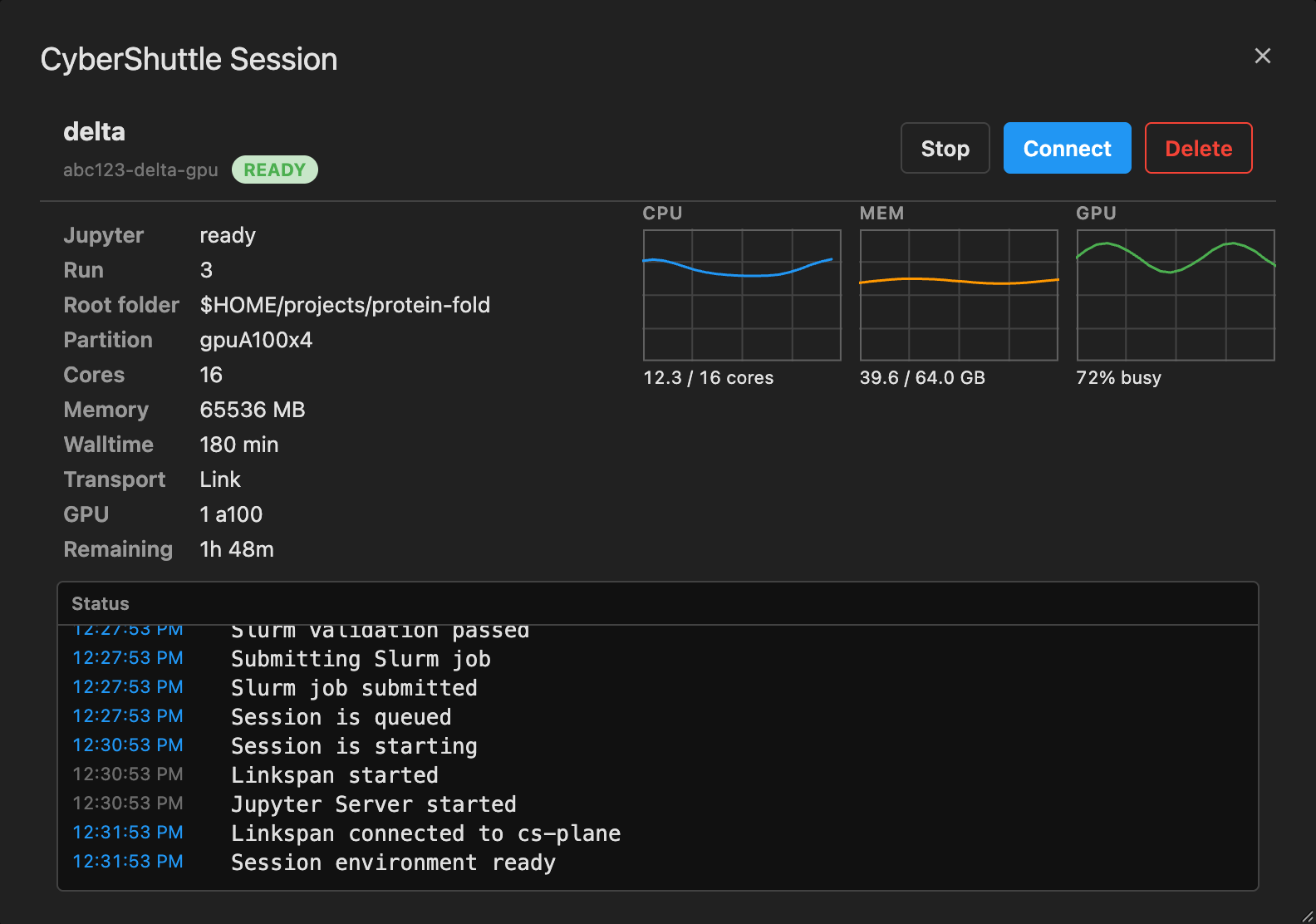
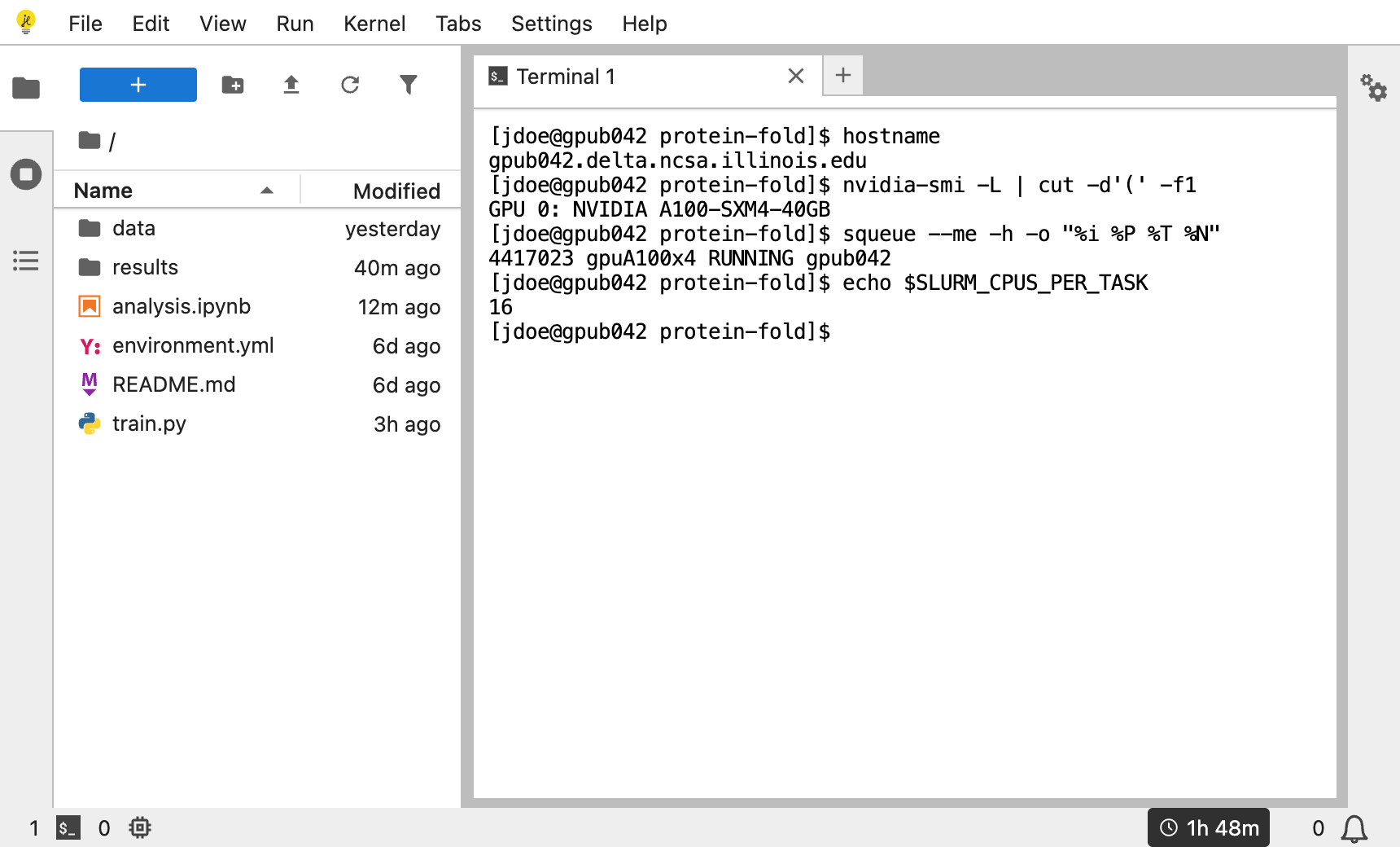
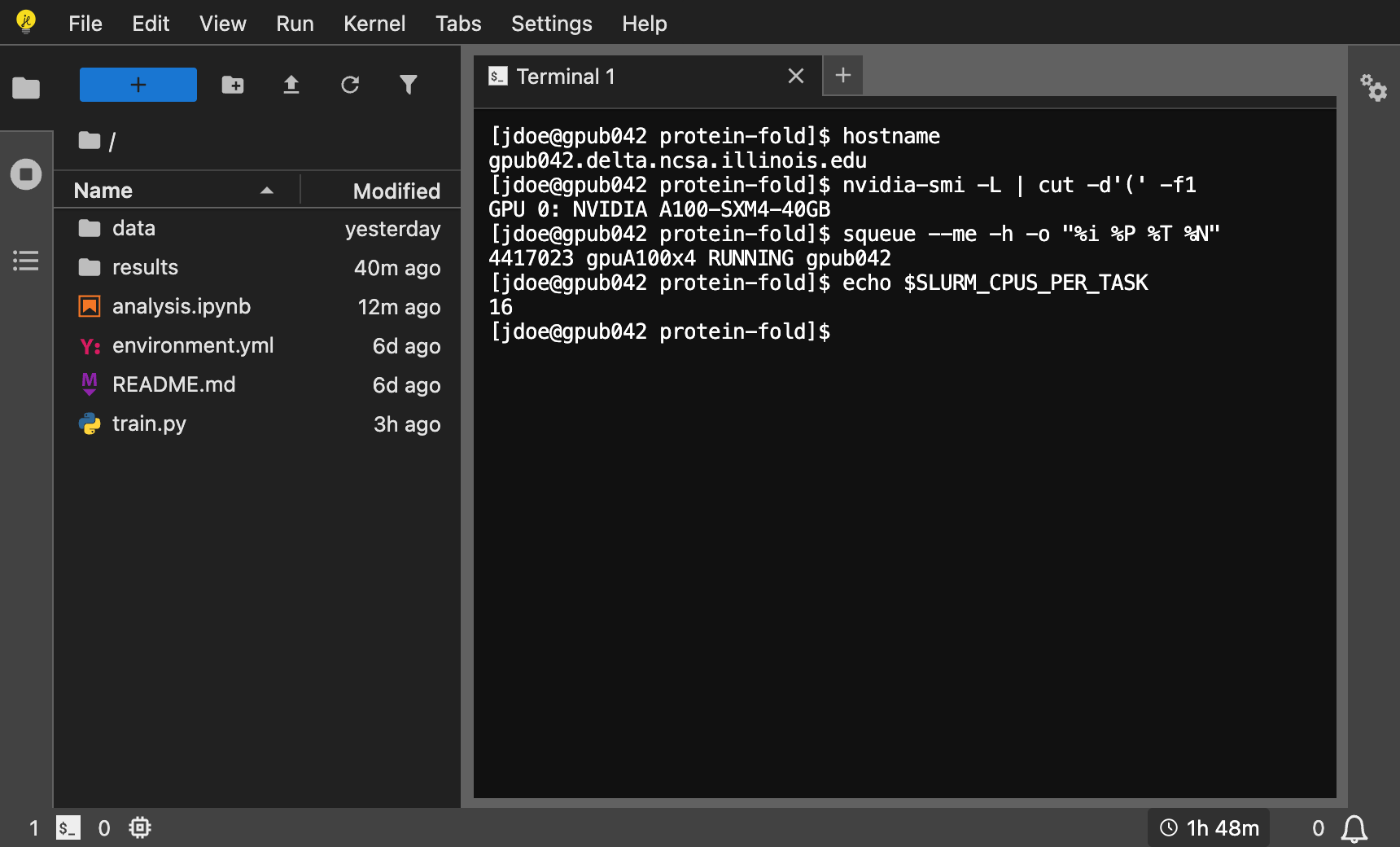
Result: the page reloads with the file browser at the root folder on the cluster, and the status bar shows the
walltime left. New notebooks, consoles and terminals run on the compute node; run hostname in a terminal to confirm.
6. Stop
Closing the tab or signing out leaves the job running and charged. To end it, return to the Launcher tab, click the session card, click Stop, and confirm.
Result: the job and its charge end, and Run History opens on the run with its duration and resource use. Kernel
state is lost; saved files remain on the cluster. The session stays in the list as STOPPED, and Start submits a
new job with the same resources.
Next, Sessions and runs covers the walltime, switching sessions and run history; Environment and kernels shows how to use your own conda environment as a kernel. If a step did not give its result, see Troubleshooting.